Install the client software
This section describes how to install the YubiOn FIDO Logon client software on your Mac.
Obtain the installer and registration code
You can obtain the installer and registration code by accessing the distribution URL.
Please check the distribution URL with your organization’s administrator.
- Access the distribution URL provided by your administrator.
- Click the “Download” button to download the macOS software installer (a .pkg file).
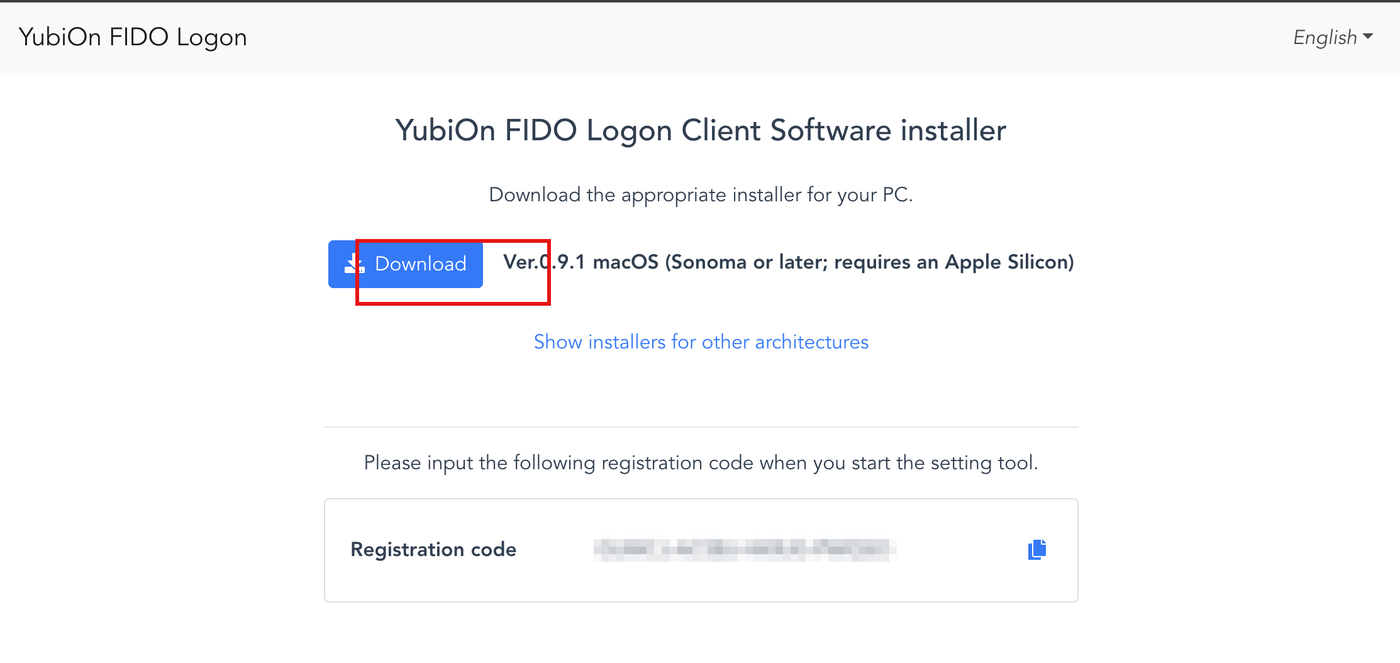
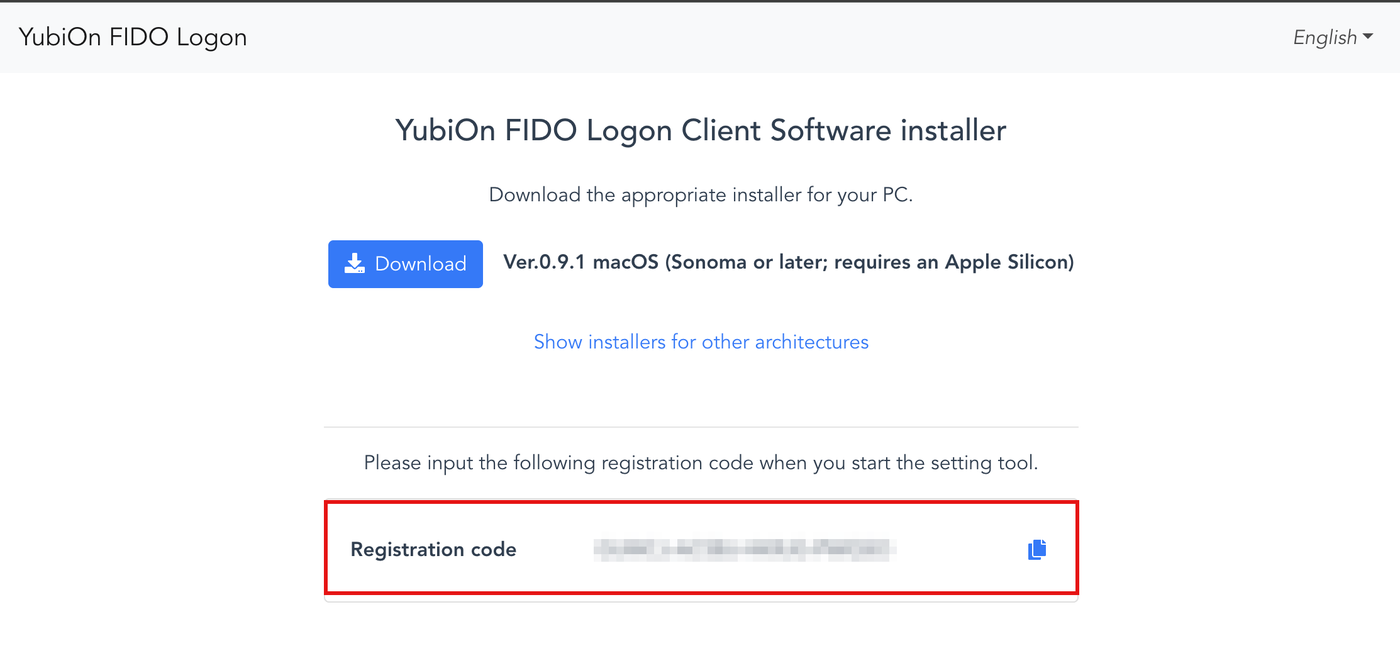
- Note down the “registration code” shown on the download page.
Supported chip
Only Apple Silicon chips are supported. The installer cannot be installed on Intel-based Macs.
Run the installation
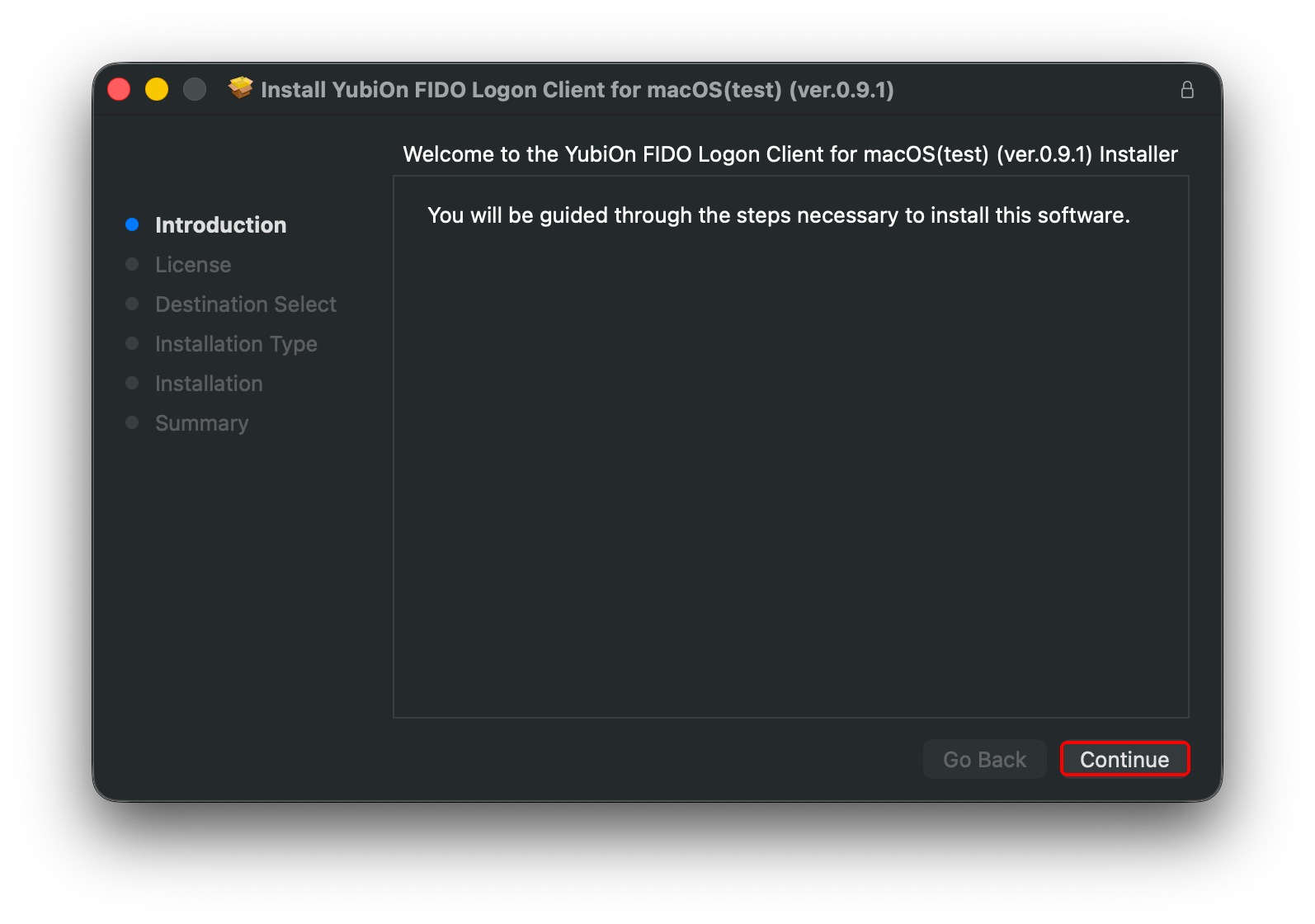
- Open the downloaded .pkg file.
- Follow the installer’s instructions (agree to the license agreement, etc.).
- There is no screen to choose an installation destination; the software is installed for the entire Mac. Click “Install”.
Enter an administrator’s username and password to run the installation.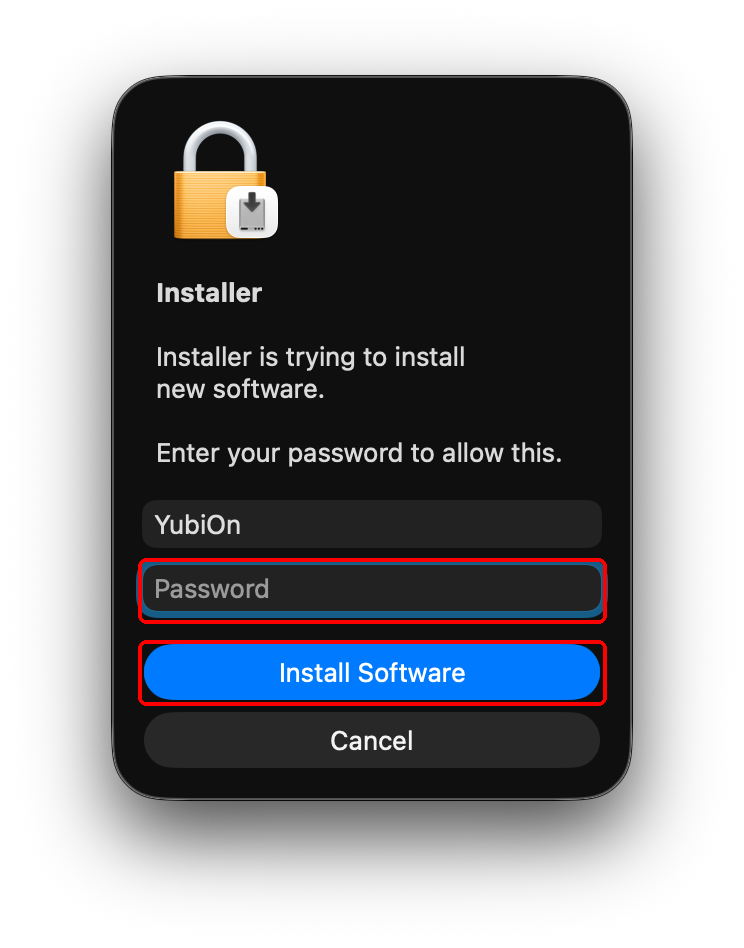
- Click “Close” once the installation is complete.
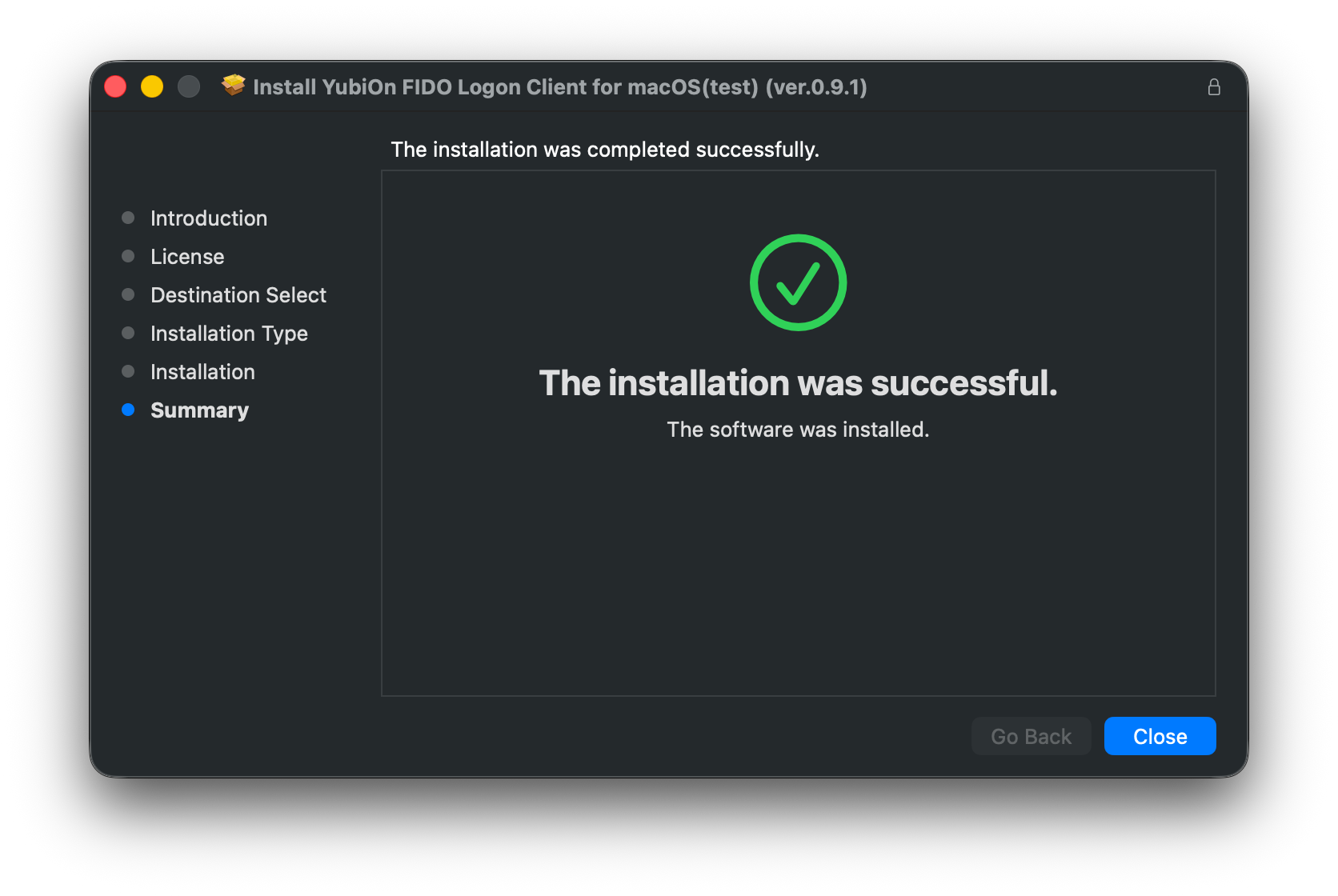
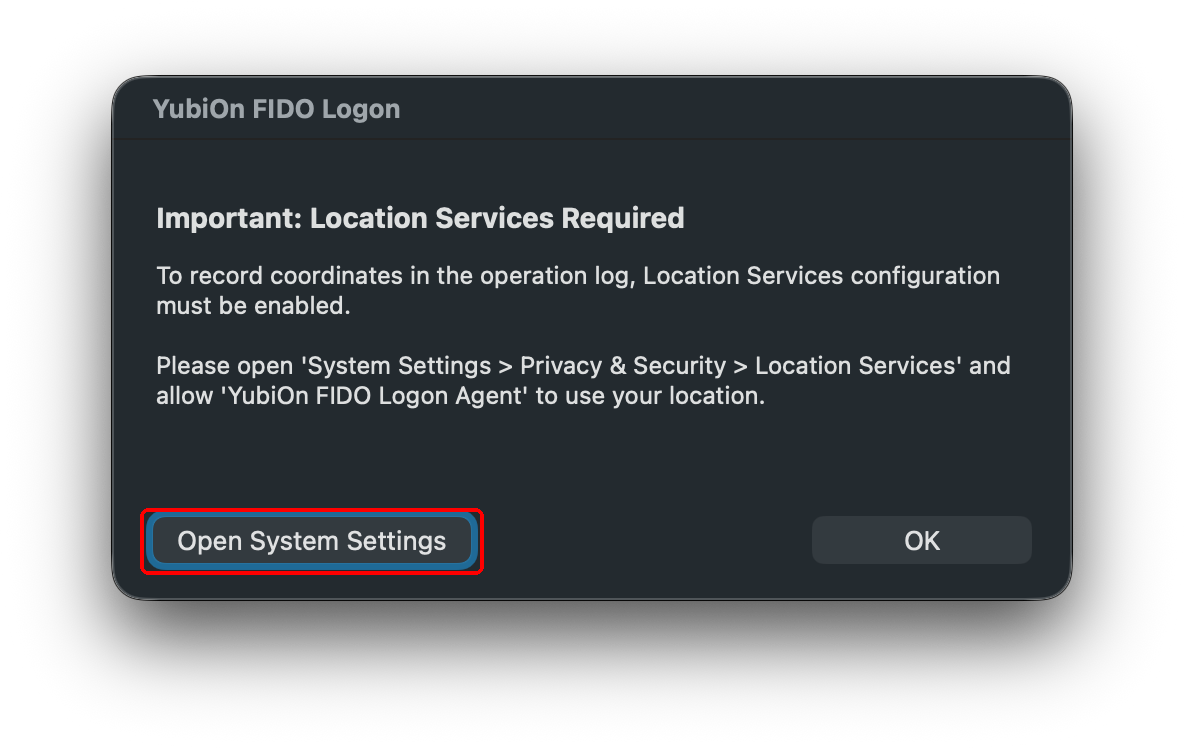
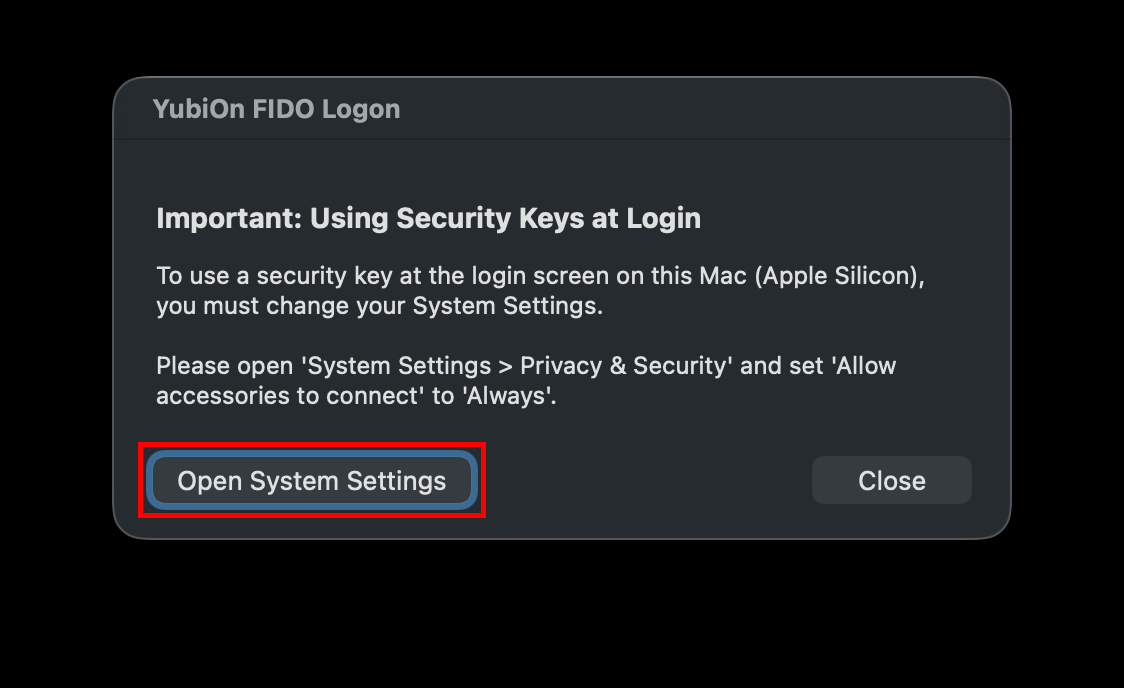
During the installation, dialogs asking to allow location access and USB accessory connections may appear automatically. Please allow them, as they are required for logging operations and for using the security key.
About allowing location services
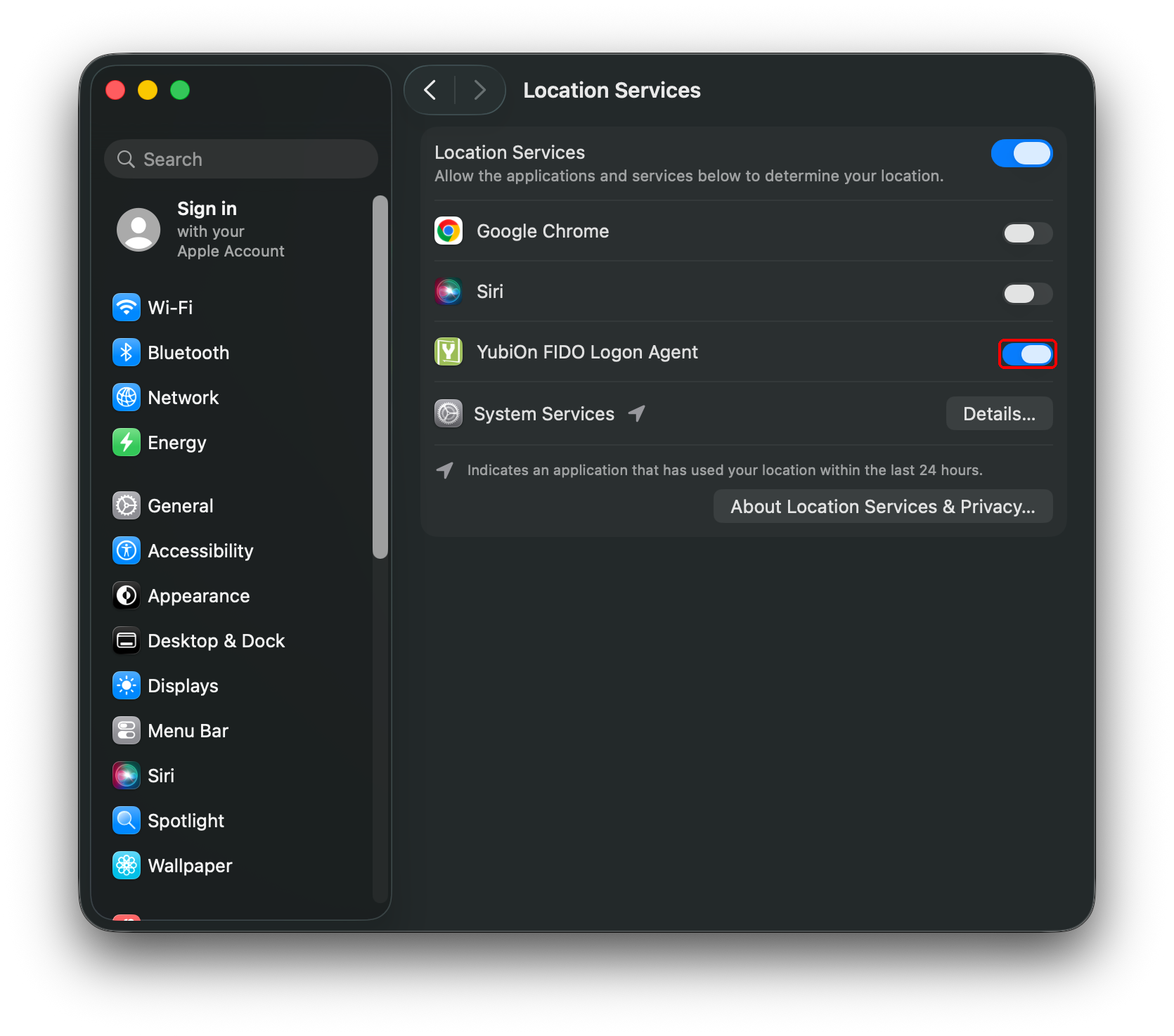
To record location in the operation log, open “System Settings” > “Privacy & Security” > “Location Services” and allow “YubiOn FIDO Logon Agent” to use your location.
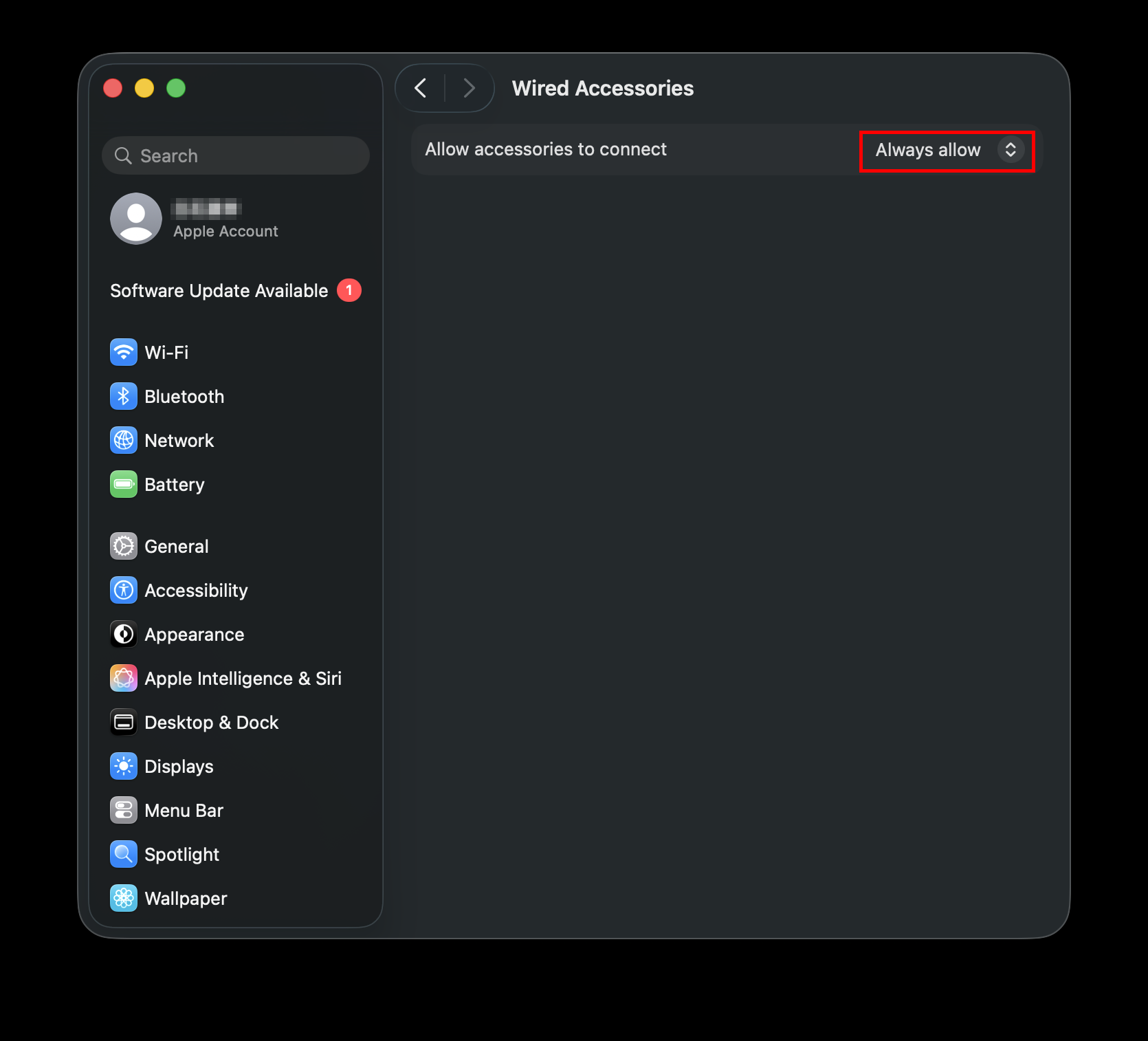
About allowing accessories to connect
To use a USB security key on the logon screen or lock screen, you need to set “System Settings” > “Privacy & Security” > “Accessories” to always allow external devices to connect. If it is set to “ask”, the security key may not be recognized before logon.
Enter the registration code in the configuration tool to activate
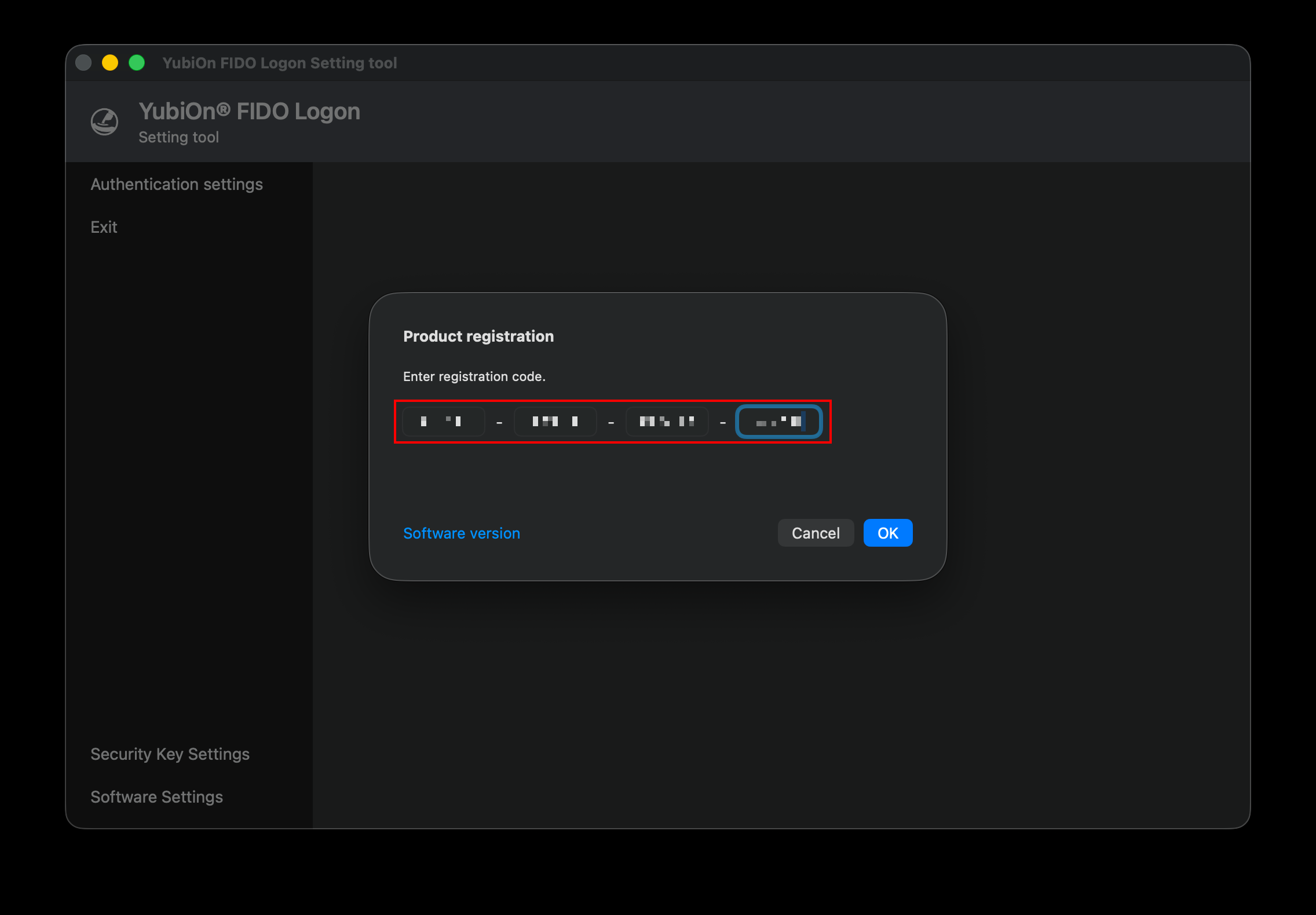
- After the installation is complete, open “YubiOn FIDO Logon Setting tool” from Launchpad or elsewhere.
- The “YubiOn FIDO Logon Product Registration” screen is displayed. Enter the registration code shown on the download page.
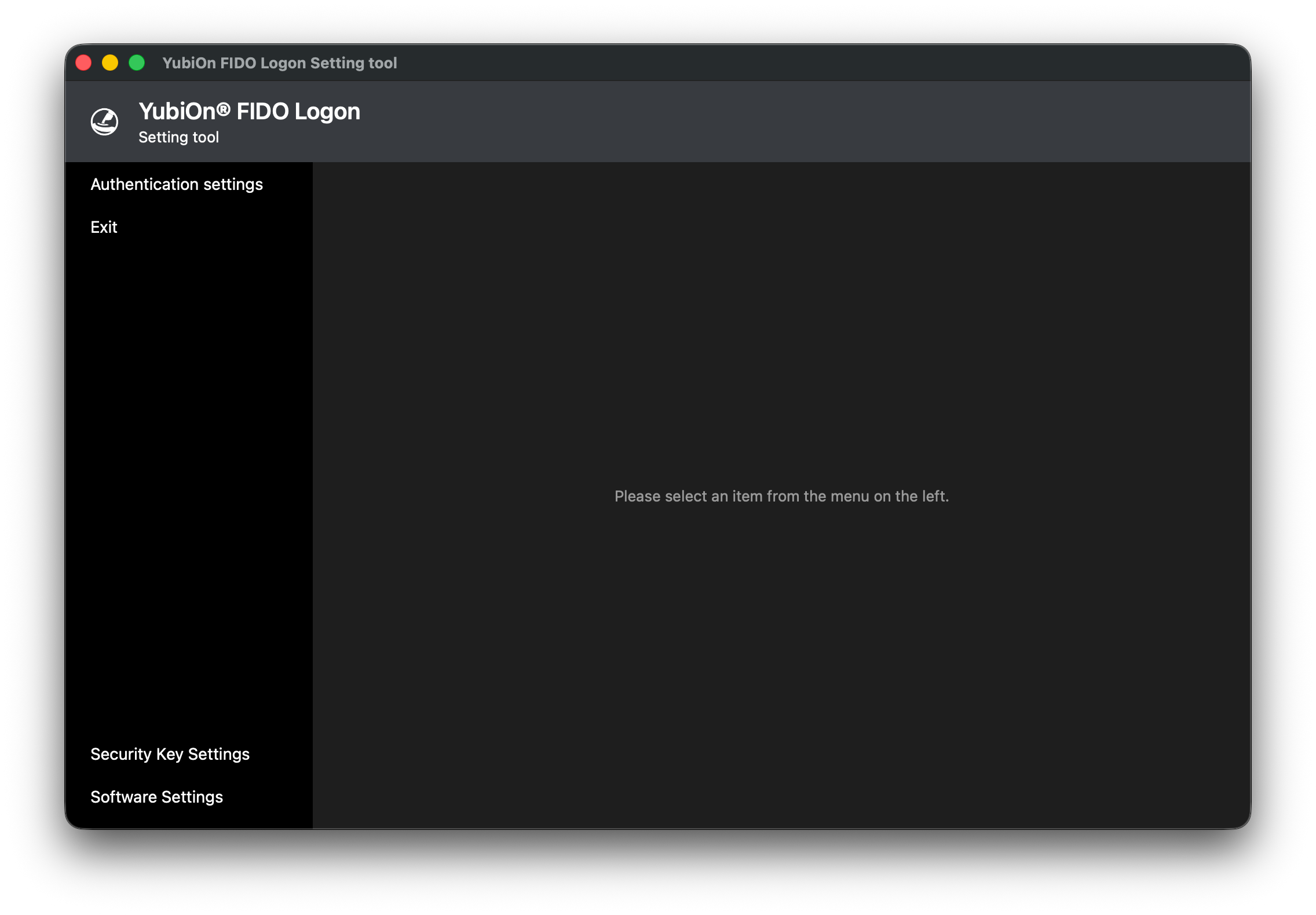
- Once registration is complete, the main screen of the configuration tool is displayed.
To continue registering an authenticator, proceed to the next step.
Register the authenticator