Check Security Key Information
In the “Security Key Settings” menu of the YubiOn FIDO Logon Setting tool, you can check information such as the model name, type, and supported standards of security keys (FIDO2 and U2F) connected to your Mac.
From this screen, you can also perform various operations on FIDO2 security keys (registering/changing PINs, managing fingerprints, and resetting the security key).
Opening the Security Key Settings Screen
- Open “YubiOn FIDO Logon Setting tool” from Launchpad or elsewhere.
- Click “Security Key Settings” in the left sidebar menu.
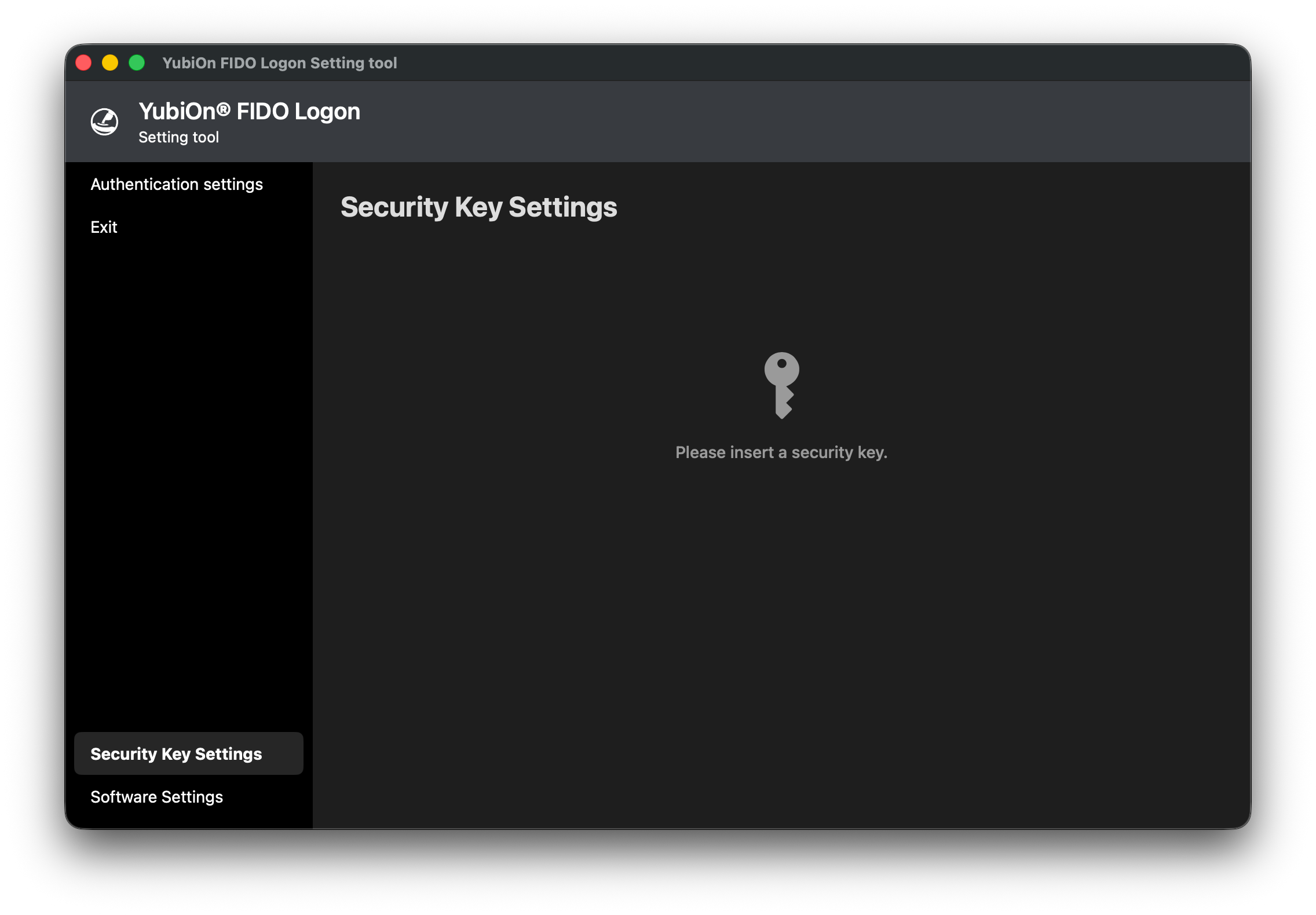
- If no security key is inserted, the prompt “Please insert a security key.” is displayed. Insert the target security key into a USB port on your Mac.
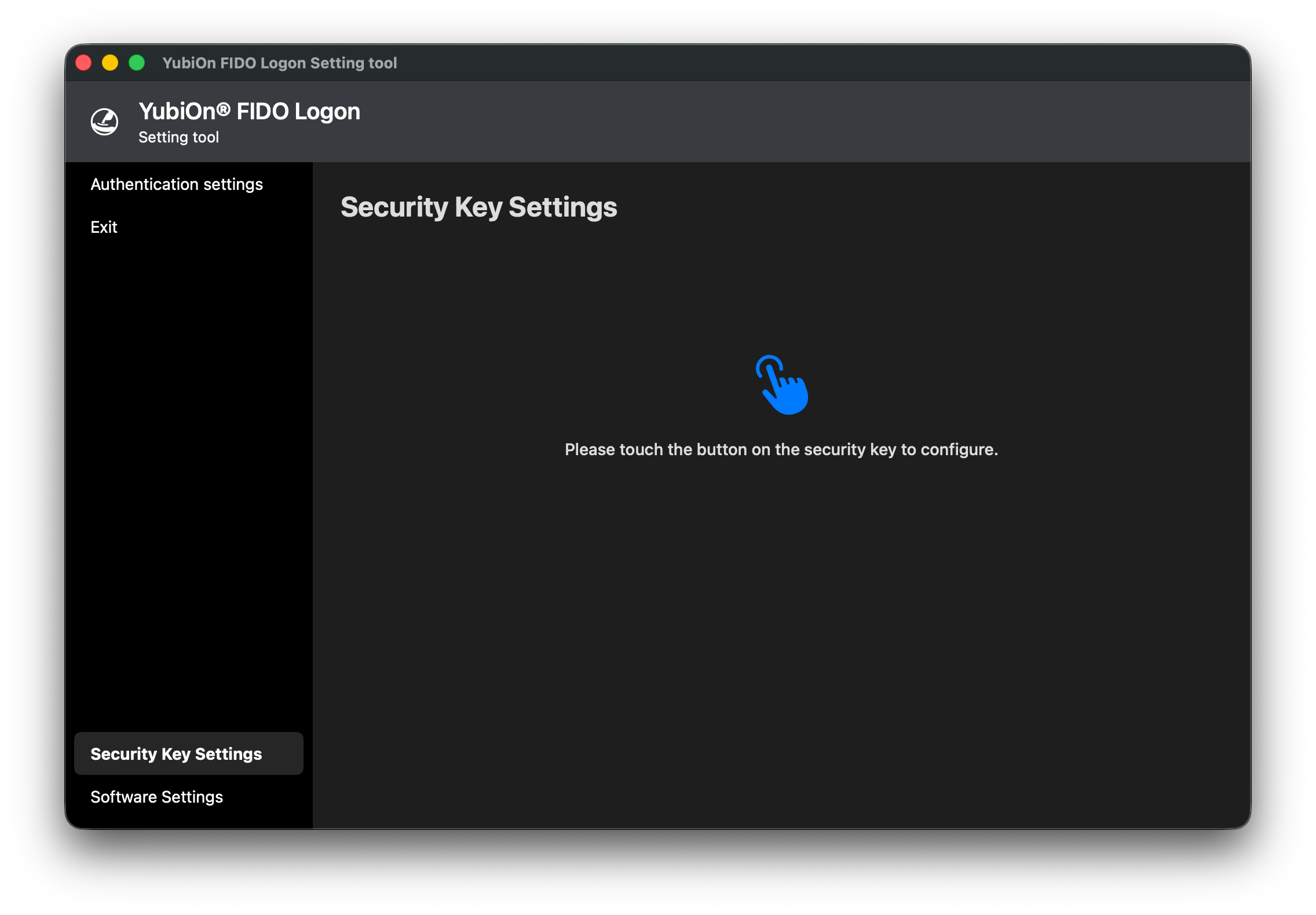
- If multiple security keys are connected and the prompt “Please touch the button on the security key to configure.” appears, touch the button or sensor on the security key you want to configure.
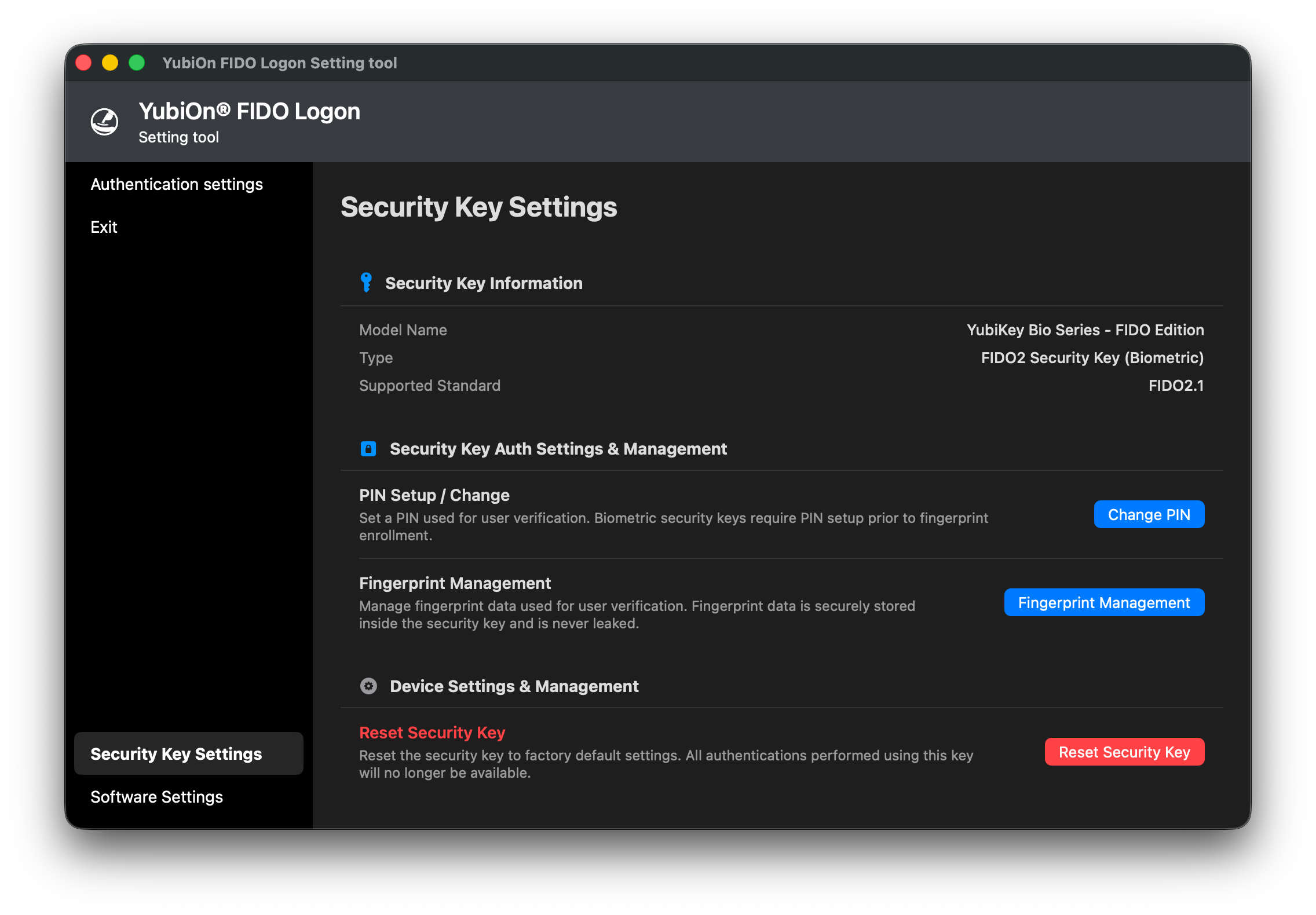
- Once the security key is recognized, the Security Key Settings screen is displayed.
Screen Layout and Information
The Security Key Settings screen consists of the following three sections:
1. Security Key Information
Displays basic information about the connected security key.
| Item | Description |
|---|---|
| Model Name | The product name of the security key (e.g., YubiKey 5 NFC, YubiKey Bio). |
| Type | The type of the authenticator (e.g., FIDO2 Security Key (Biometric), FIDO2 Security Key (PIN), U2F Security Key). |
| Supported Standard | The FIDO specification version supported by the security key (e.g., FIDO2.0, FIDO2.1, U2F). |
2. Security Key Auth Settings & Management
Configure and manage security key authentication.
- PIN Setup / Change:
Register or change the security key’s PIN.
For detailed steps, see Register / Change PIN. - Fingerprint Settings:
When a biometric-enabled security key (such as the YubiKey Bio) is connected, the “Fingerprint Settings” button is displayed. You can enroll, rename, or delete fingerprints (a PIN must already be configured).
For detailed steps, see Manage Fingerprints.
3. Device Settings & Management
Configure and manage the device itself, such as performing a factory reset.
- Reset Security Key:
Reset the security key to factory default settings. Erases all PINs, fingerprints, and credential keys on the security key.
For detailed steps, see Reset Security Key.
Notes on U2F Security Keys
Restrictions on U2F Security Keys
U2F dedicated security keys do not support configuration changes (PIN registration/change, fingerprint management, and initialization/reset) from this tool.
When a U2F key is connected, only security key information can be viewed, and configuration buttons will be disabled.