Manage Fingerprints
This section explains how to enroll fingerprints, rename fingerprint labels, delete individual fingerprints, and delete all fingerprints on biometric-enabled FIDO2 security keys (such as the YubiKey Bio series).
Prerequisites
- On security keys that do not support biometrics, the “Fingerprint Settings” section will not be displayed under “Security Key Settings”.
- A PIN must be configured on the security key before you can manage fingerprints. If not yet configured, register a PIN first by following Register / Change PIN.
- Enrolling, renaming, or deleting fingerprints does not affect credentials already registered with computers or services.
Opening the Fingerprint Management Screen
- Open the “Security Key Settings” screen in the configuration tool, and connect your biometric-enabled security key (for details on opening the screen, see Check Security Key Information).
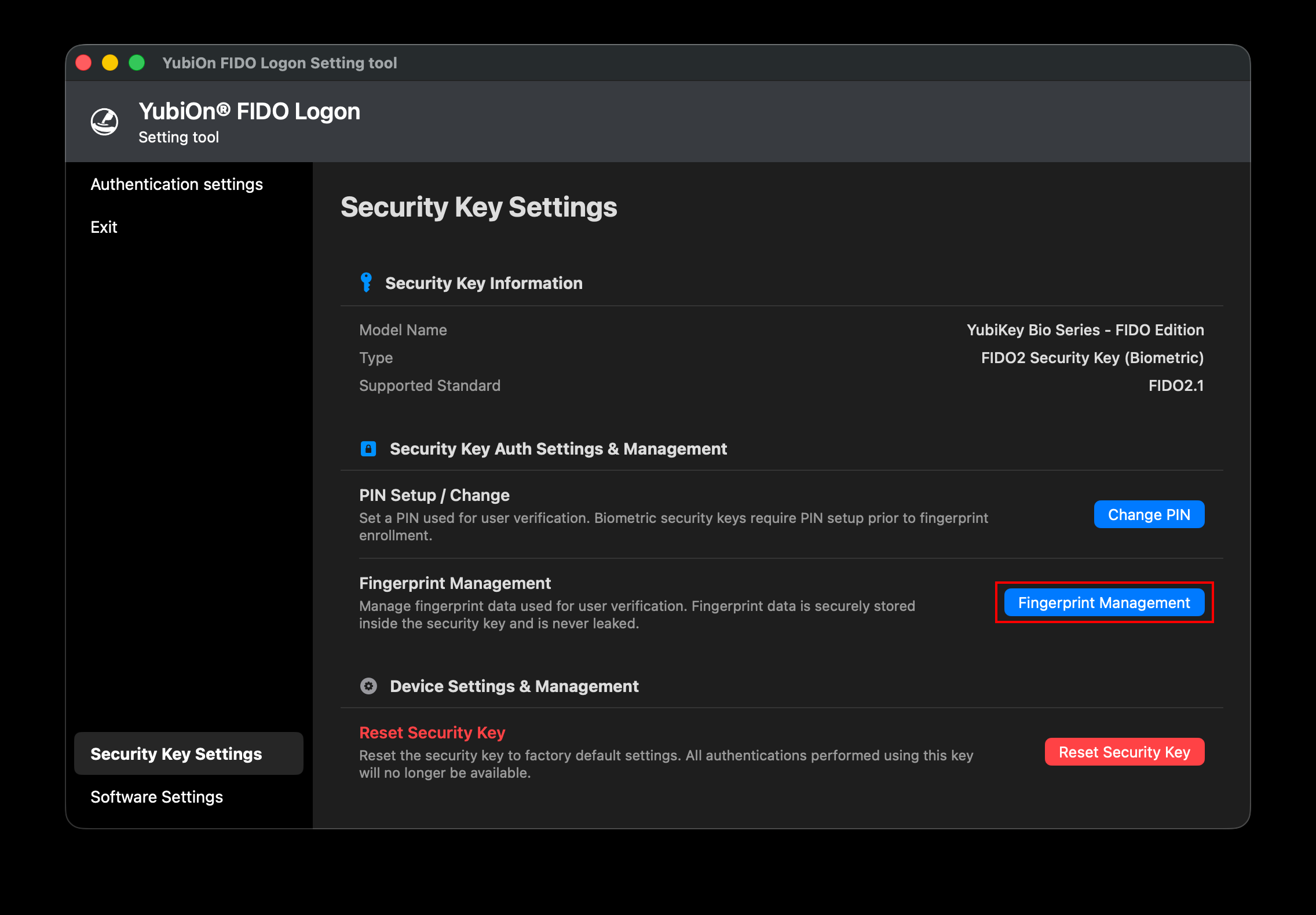
- In the “Authentication Settings” section, click the “Fingerprint Settings” button under “Biometrics”.
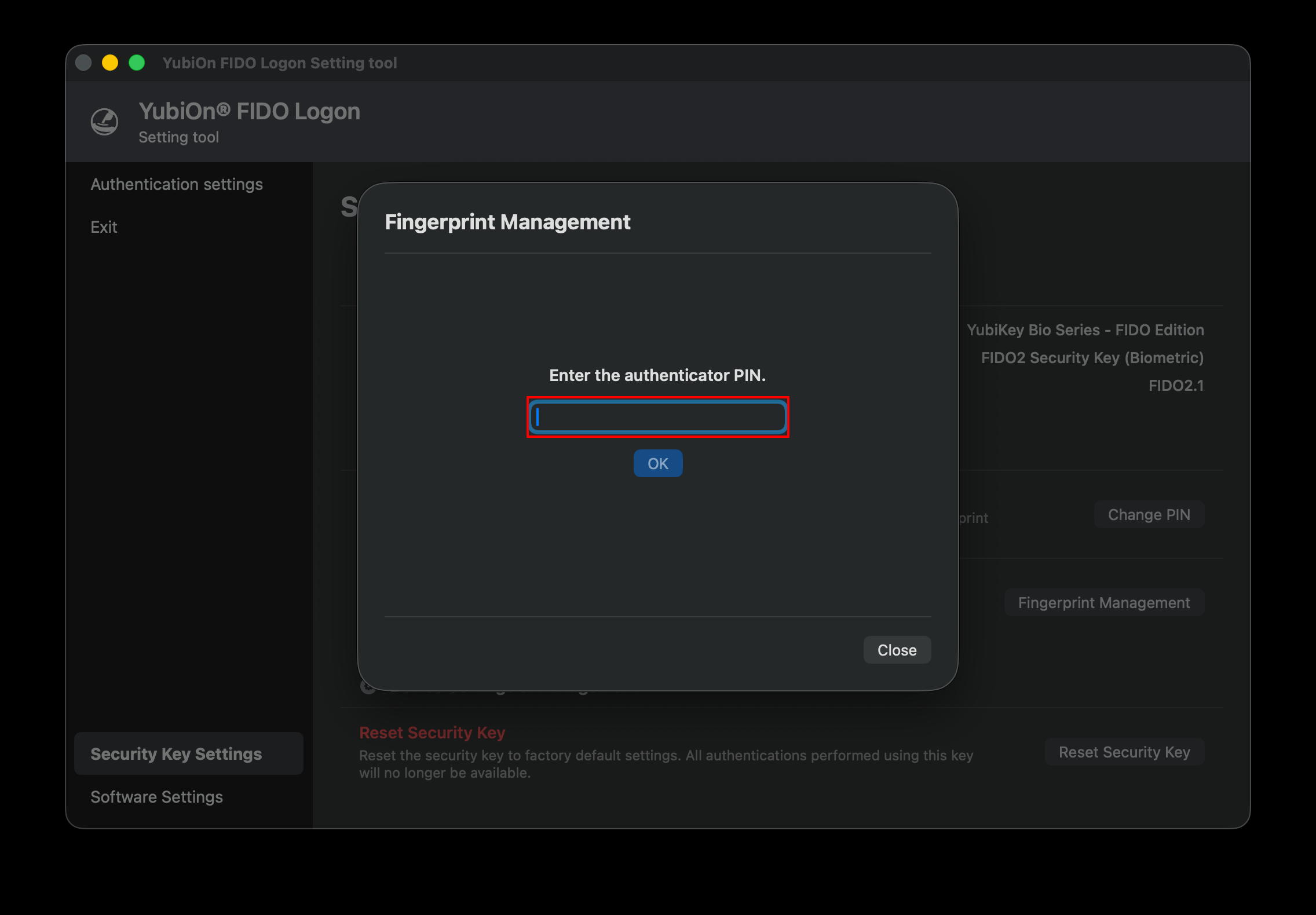
- The “Please enter PIN” screen is displayed. Enter the security key PIN and click “OK”.
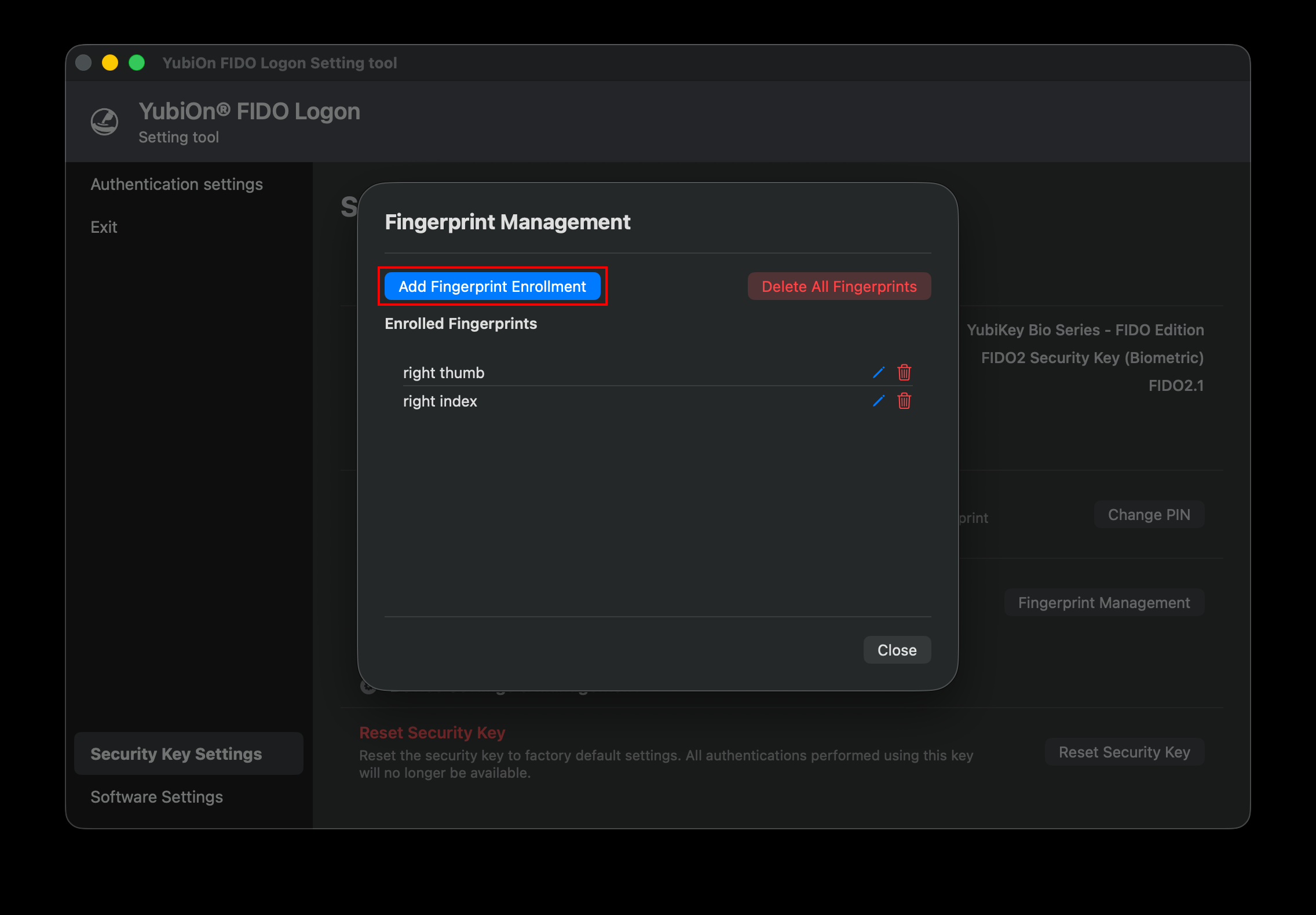
- Once the PIN is verified, the Fingerprint Management screen opens, displaying a list of enrolled fingerprints.
Enrolling Fingerprints (New / Additional)
- On the Fingerprint Management screen, click “New Fingerprint Enrollment” (if no fingerprints are registered) or “Add Fingerprint Enrollment” (if fingerprints already exist).
- The fingerprint sampling screen is displayed.
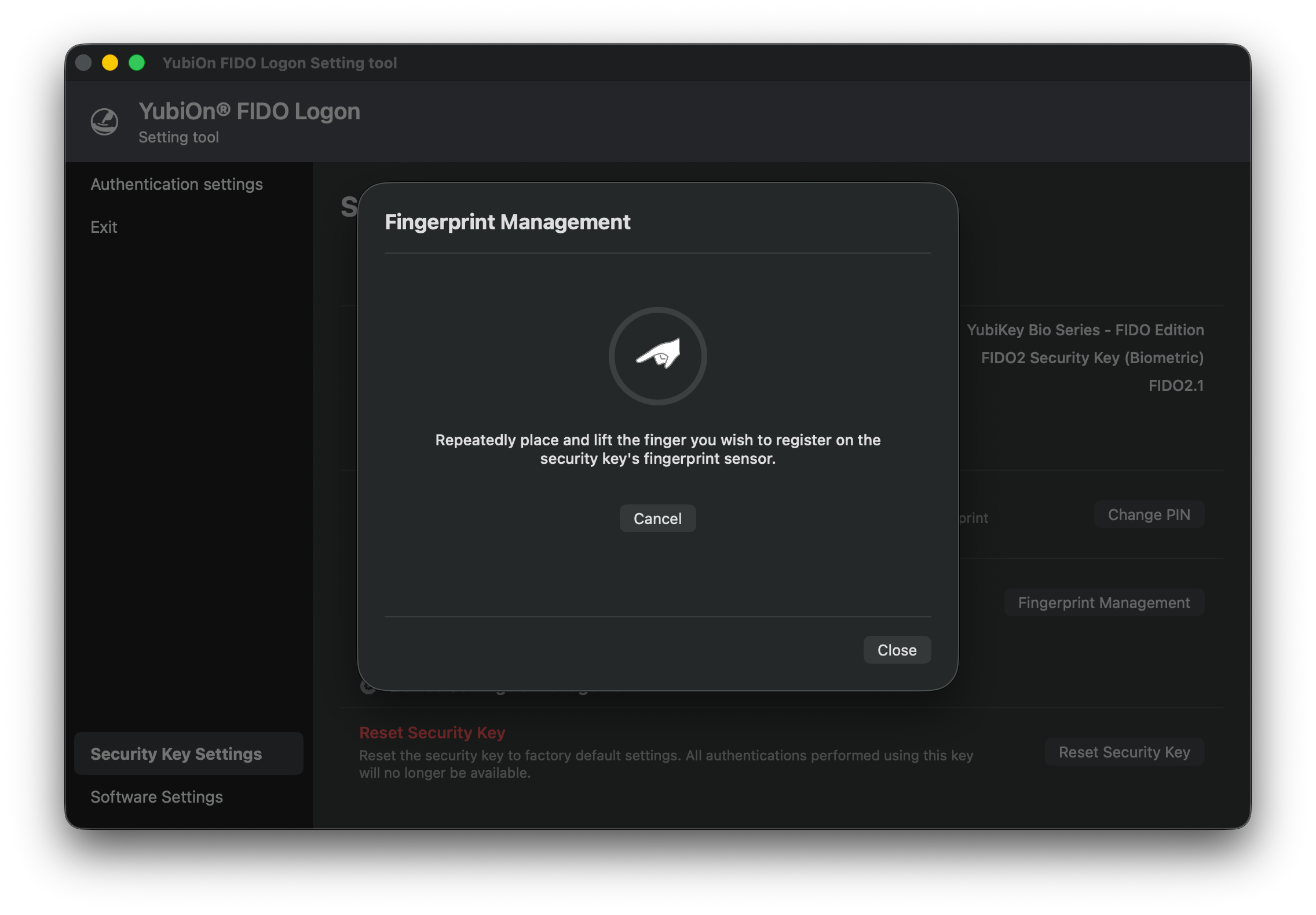
- Follow the on-screen instructions (“Repeatedly place and lift the finger you wish to register on the security key’s fingerprint sensor.") by touching and lifting your finger on the sensor.
- Each touch advances the progress ring.
- If feedback such as “Please touch a little lower.” or “Please touch more carefully.” appears, adjust your finger’s position or pressure accordingly.
- When sufficient samples have been captured, “Fingerprint registration completed.” is displayed.
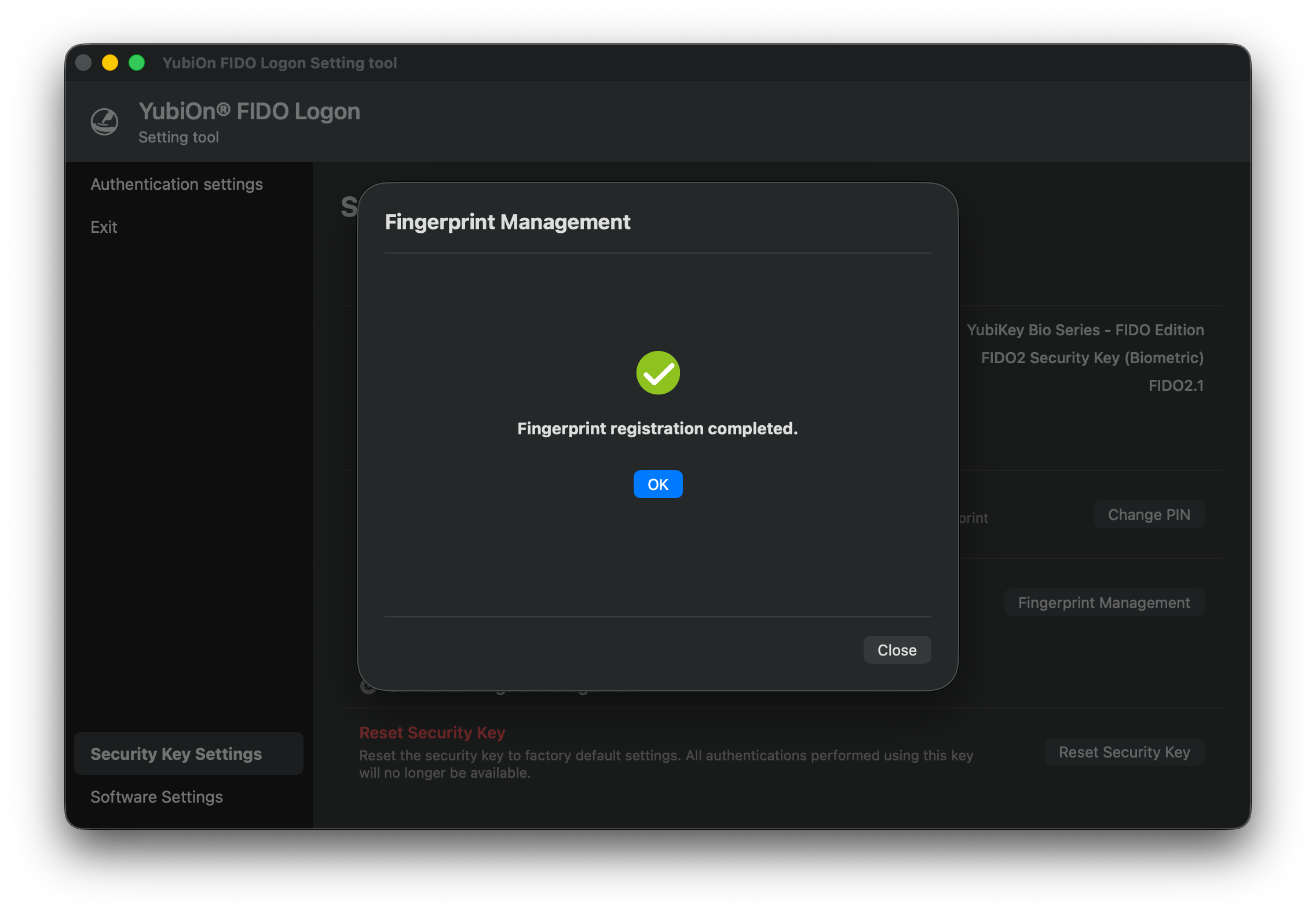
- Click “OK” to return to the Fingerprint Management screen, where the newly enrolled fingerprint appears in the list.
Maximum Number of Fingerprints
There is a limit to the number of fingerprints that can be stored on a security key (typically 5 to 10 fingerprints, depending on the authenticator’s specifications). If the limit is reached, delete an unnecessary fingerprint before enrolling a new one.
Renaming a Fingerprint
You can assign a recognizable name (e.g., “Right Index Finger”) to each enrolled fingerprint.
- In the fingerprint list, click the pencil icon next to the fingerprint you want to rename.
- The “Rename Fingerprint” dialog is displayed. Enter the new name and click “OK”.
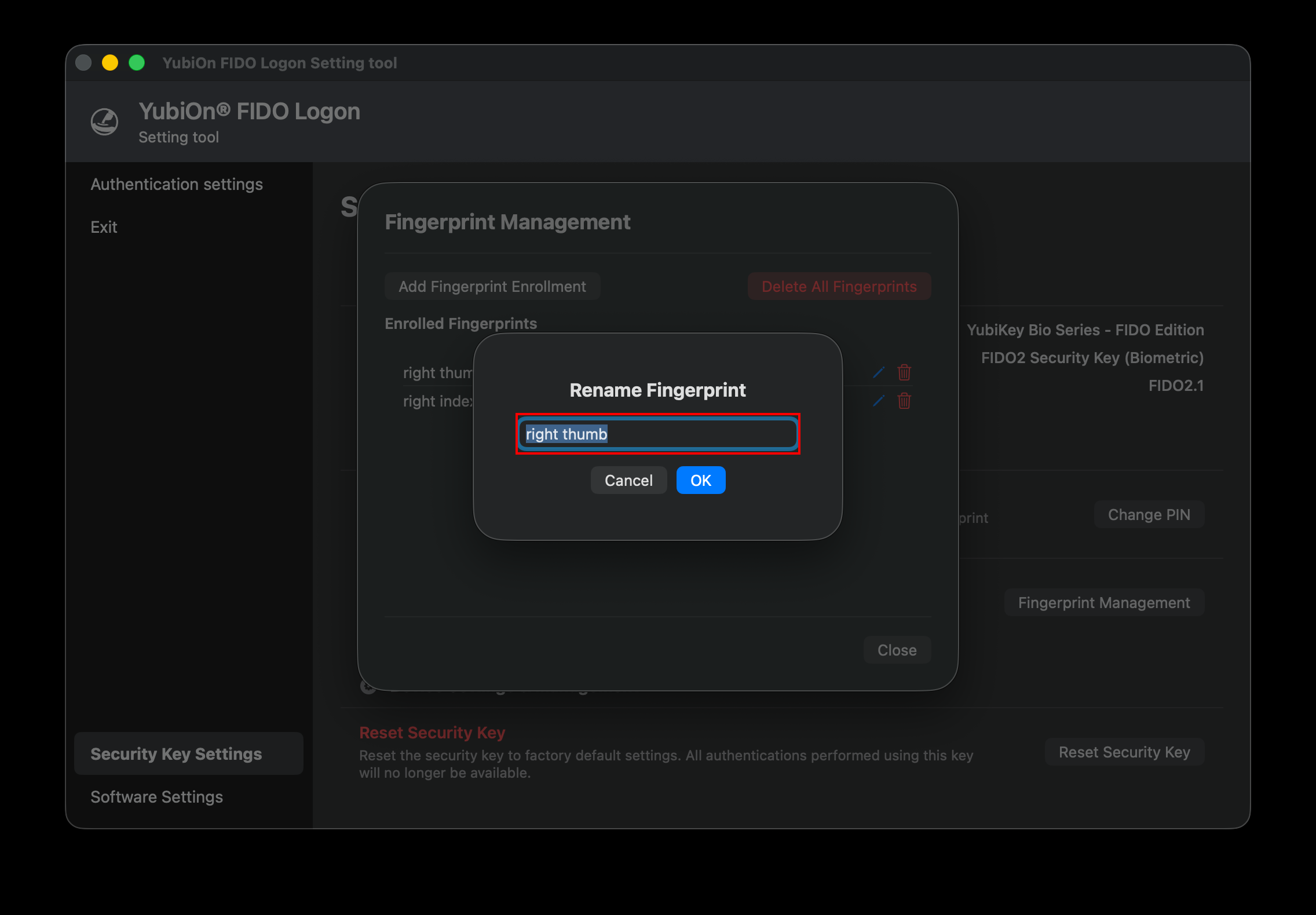
- The name displayed in the fingerprint list is updated.
Deleting an Individual Fingerprint
Follow these steps to delete a specific fingerprint.
- In the fingerprint list, click the trash can icon next to the fingerprint you want to delete.
- A confirmation dialog asking “Are you sure you want to delete this fingerprint?” appears. Click “Delete”.
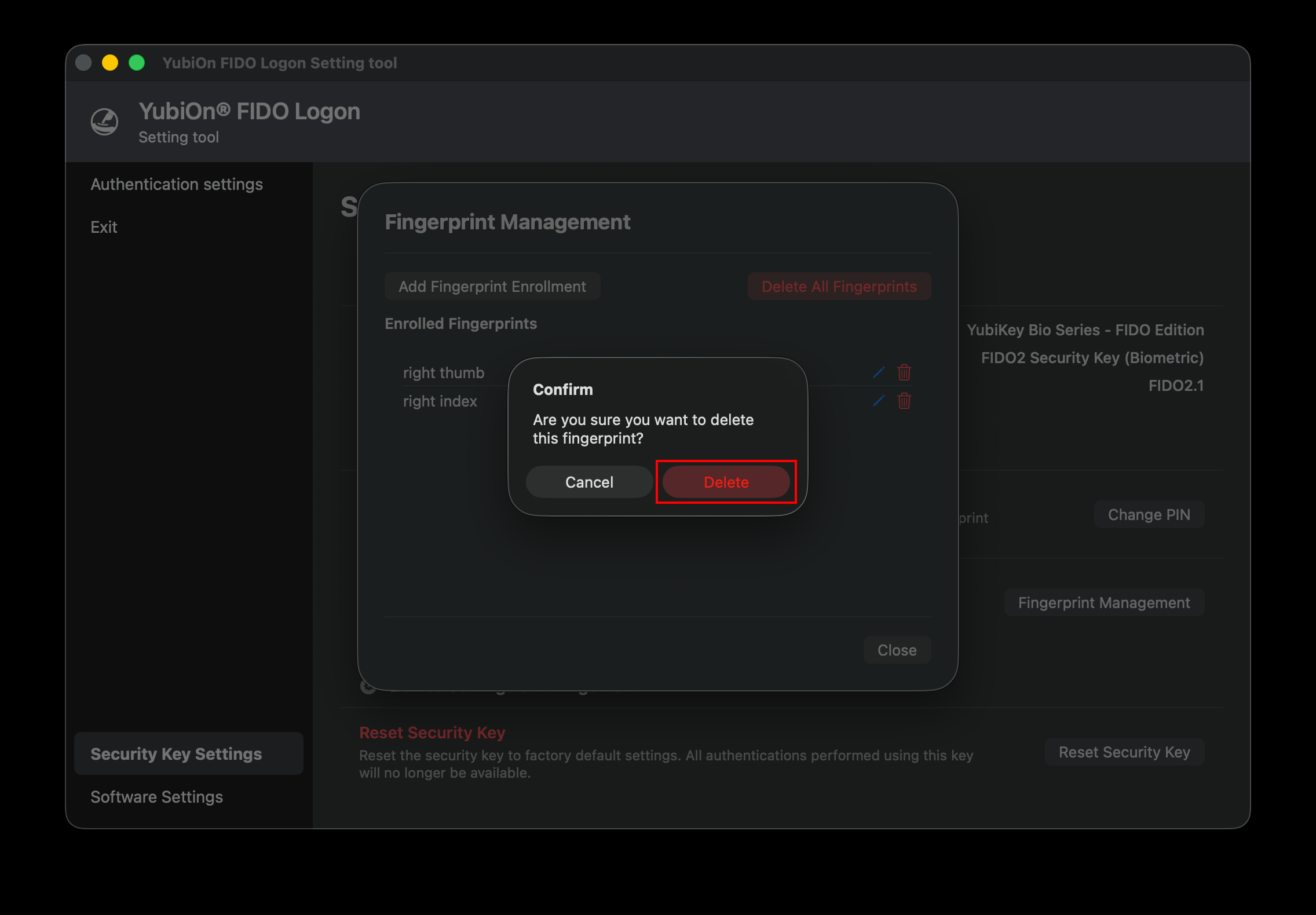
- “The fingerprint has been deleted.” is displayed, and the fingerprint is removed from the list.
Deleting All Fingerprints
Follow these steps to delete all enrolled fingerprints at once.
- Click the “Delete All Fingerprints” button in the upper right of the Fingerprint Management screen.
- A confirmation dialog asking “Are you sure you want to delete all enrolled fingerprints?” appears. Click “Delete”.
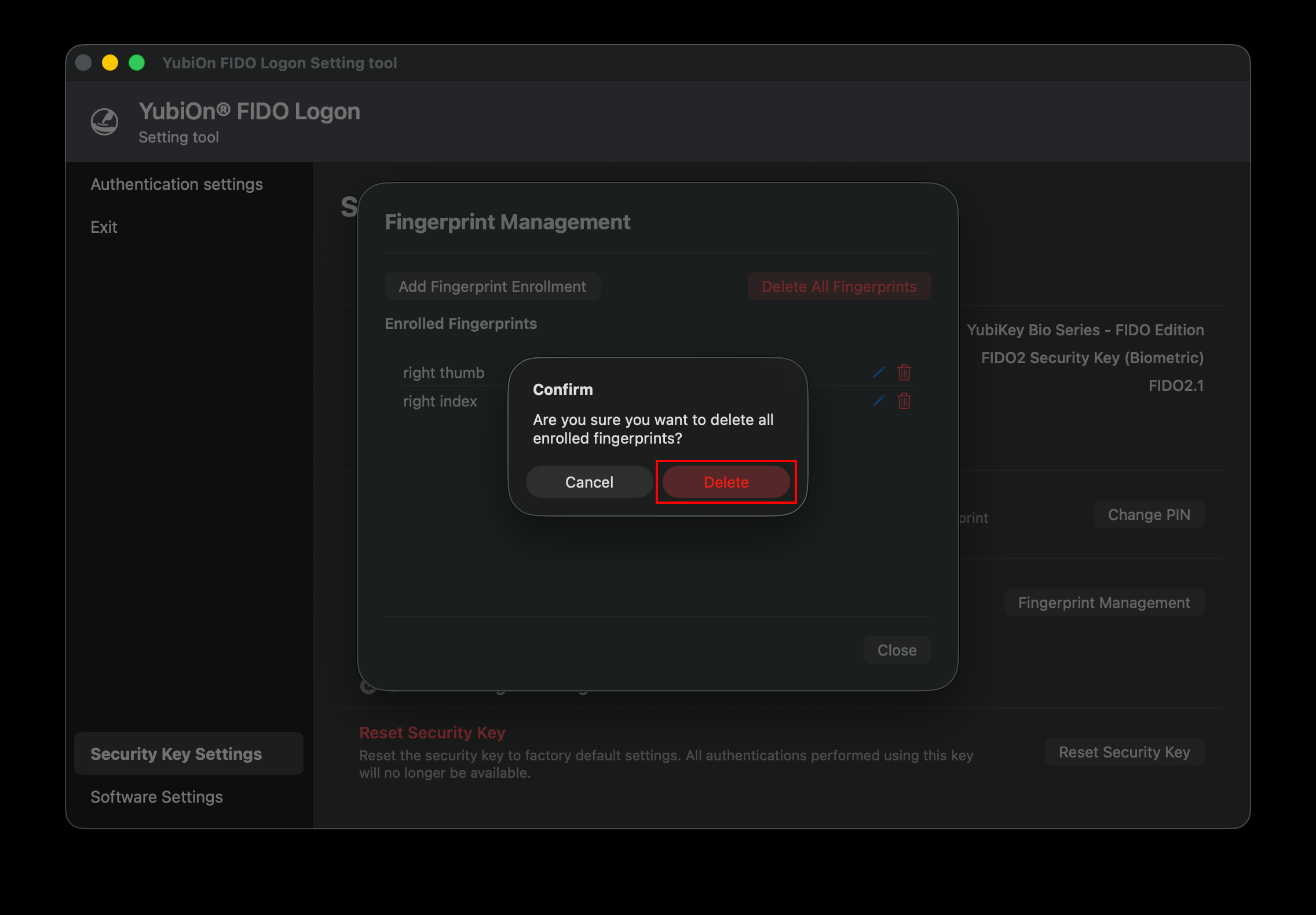
- “All fingerprints have been deleted.” is displayed, and all enrolled fingerprints are removed.
After Deleting All Fingerprints
Deleting all fingerprints does not remove the configured PIN or your computer’s logon registration. You can still log on to your computer using your PIN.