Register / Change PIN
This section explains how to register a PIN for the first time on a FIDO2 security key, and how to change an existing PIN.
About PIN Configuration
A FIDO2 security key cannot be used without setting a PIN (including fingerprint-enabled biometric keys).
Changing the PIN does not affect credentials already registered with computers or services. The PIN is used solely to protect access to secret information inside the FIDO2 security key.
Preparation
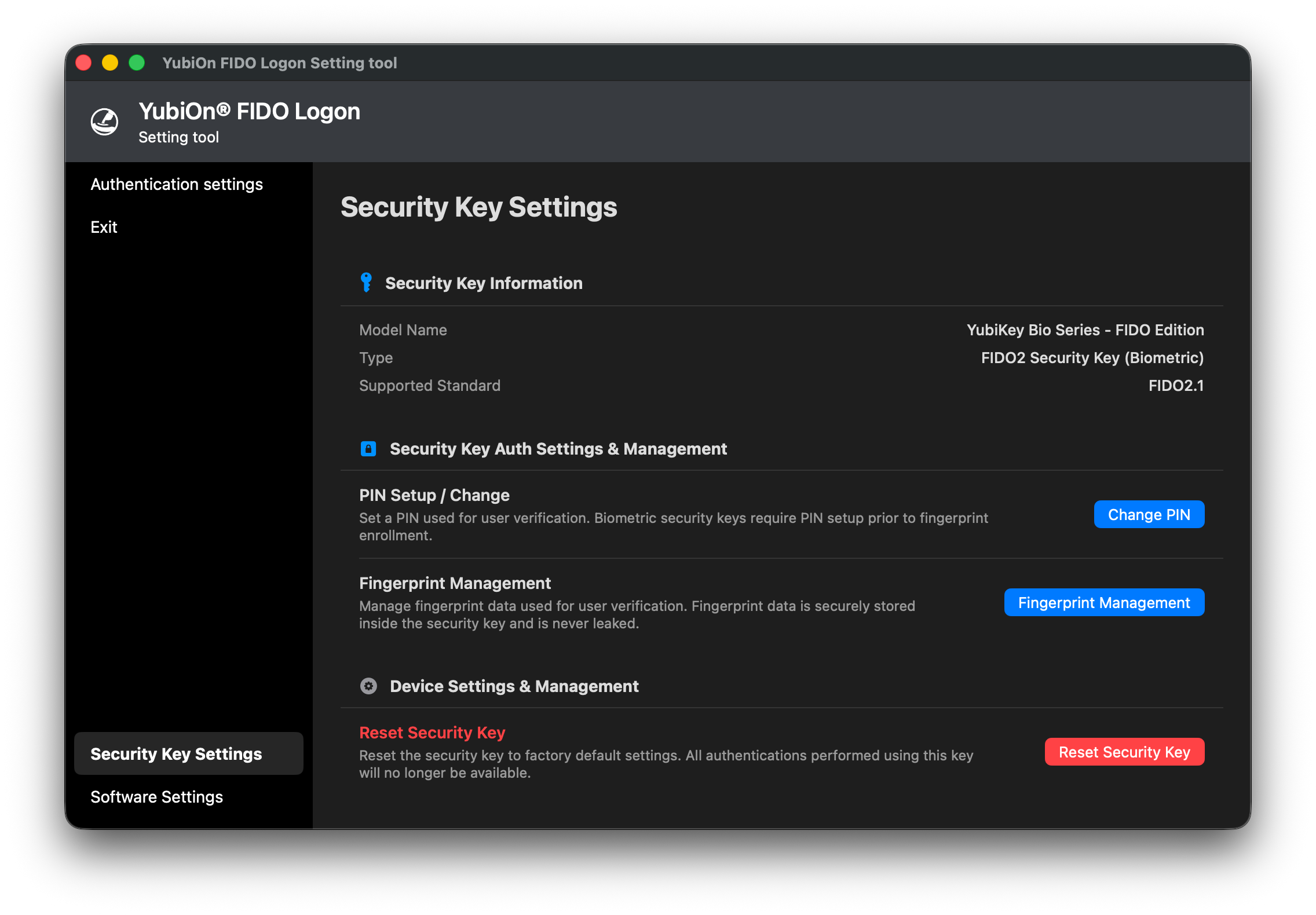
Open “YubiOn FIDO Logon Setting tool” from Launchpad or elsewhere, select “Security Key Settings” from the left menu, and connect your security key to open the Security Key Settings screen.
- For details on how to open the screen and verify key information, see Check Security Key Information.
Registering a PIN (When Not Yet Set)
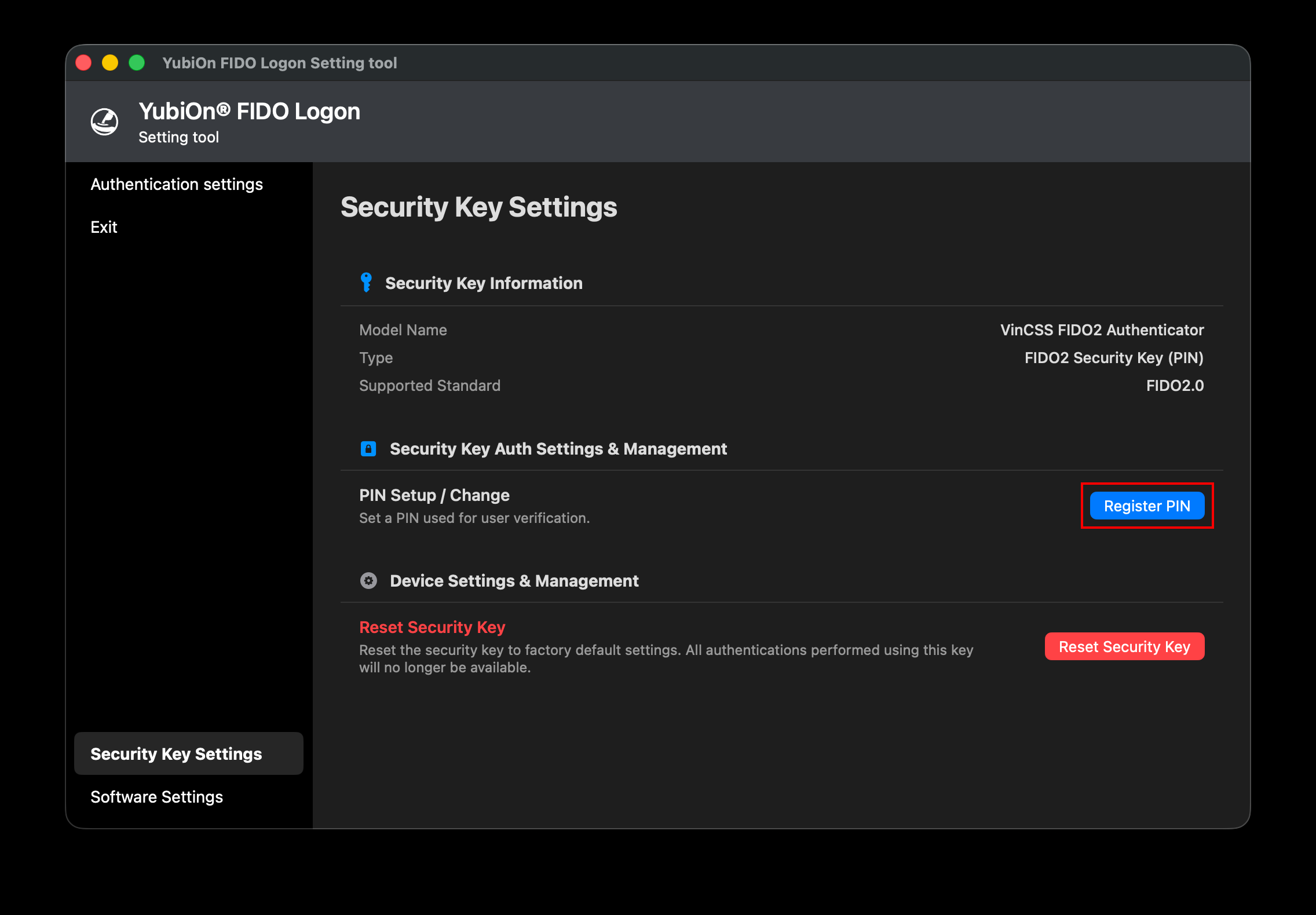
If a PIN has not yet been set on the security key, a “Register PIN” button is displayed in the “PIN Setup / Change” section.
- Click the “Register PIN” button.
- The “PIN Setup / Change” screen is displayed. Enter the desired PIN in both “New PIN” and “Confirm PIN”.
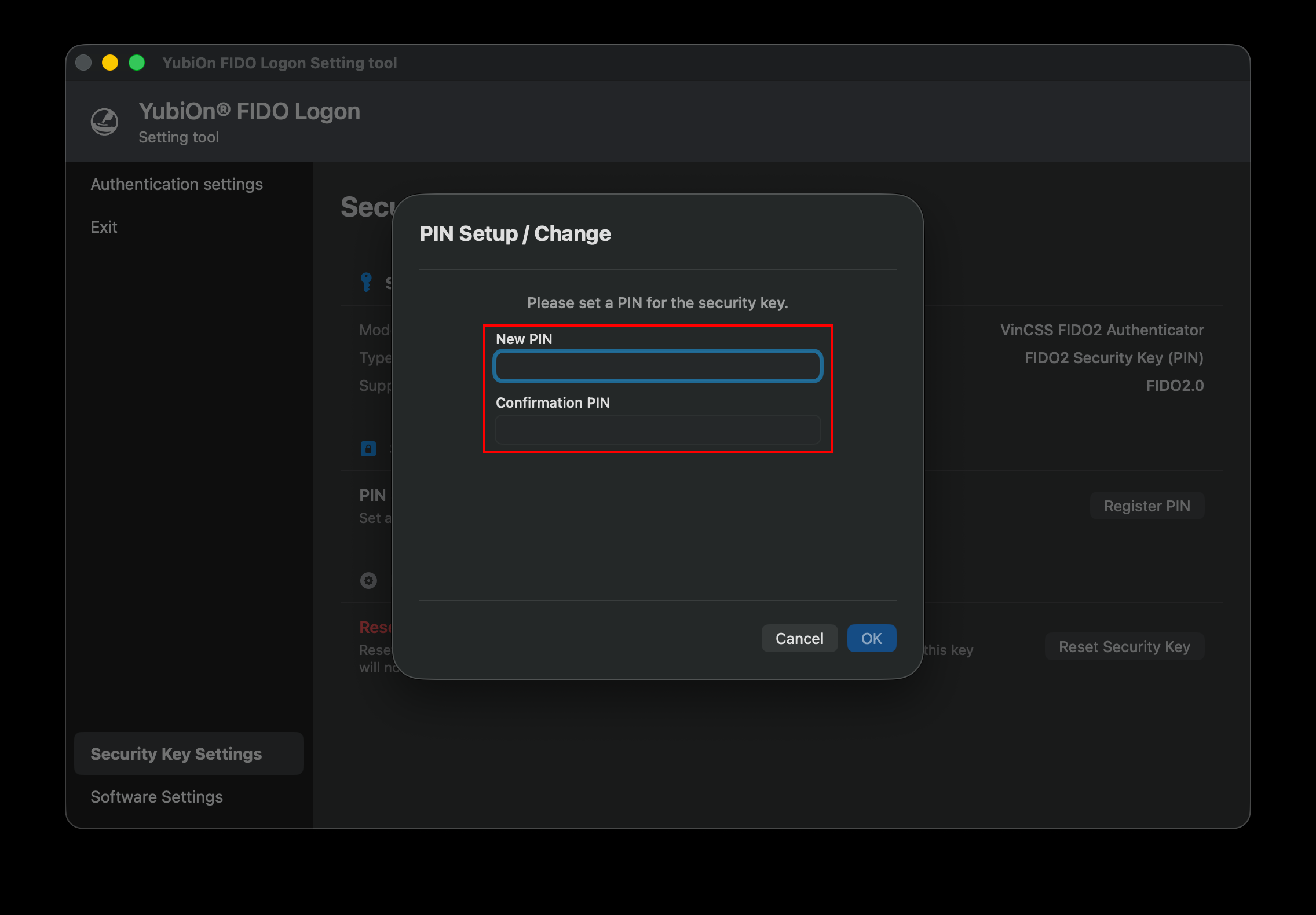
- Click the “OK” button.
- When “PIN setup completed.” is displayed, click “OK” to finish.
PIN Code Requirements
- Allowed characters: Unicode characters including alphanumeric characters
- Length: 4 to 63 characters (subject to the security key’s minimum PIN length setting)
Changing the PIN (When Already Set)
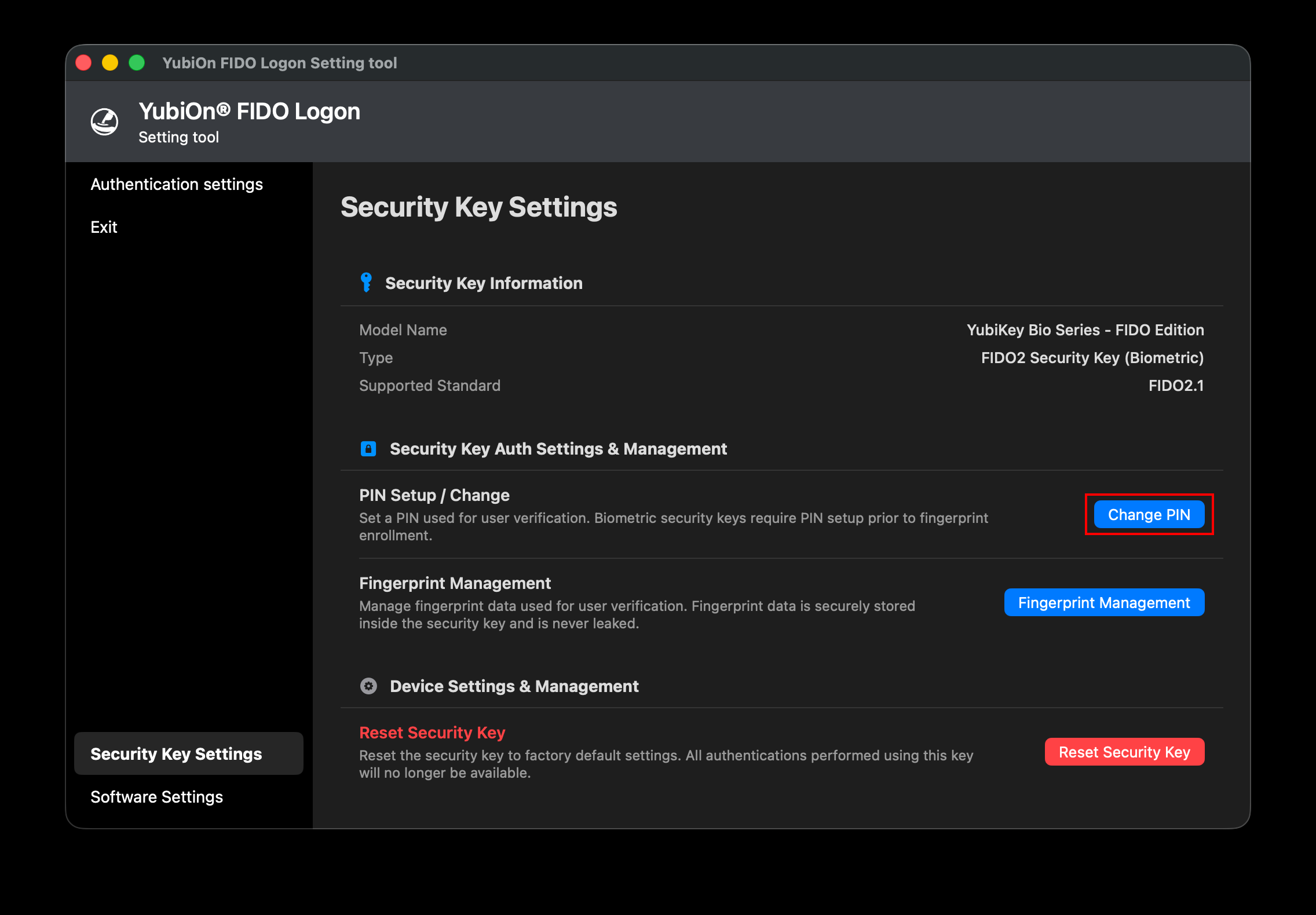
If a PIN has already been set on the security key, a “Change PIN” button is displayed in the “PIN Setup / Change” section.
- Click the “Change PIN” button.
- The “PIN Setup / Change” screen is displayed.
- “Current PIN”: Enter the currently set PIN.
- “New PIN”: Enter the new PIN you wish to set.
- “Confirm PIN”: Re-enter the new PIN for confirmation.
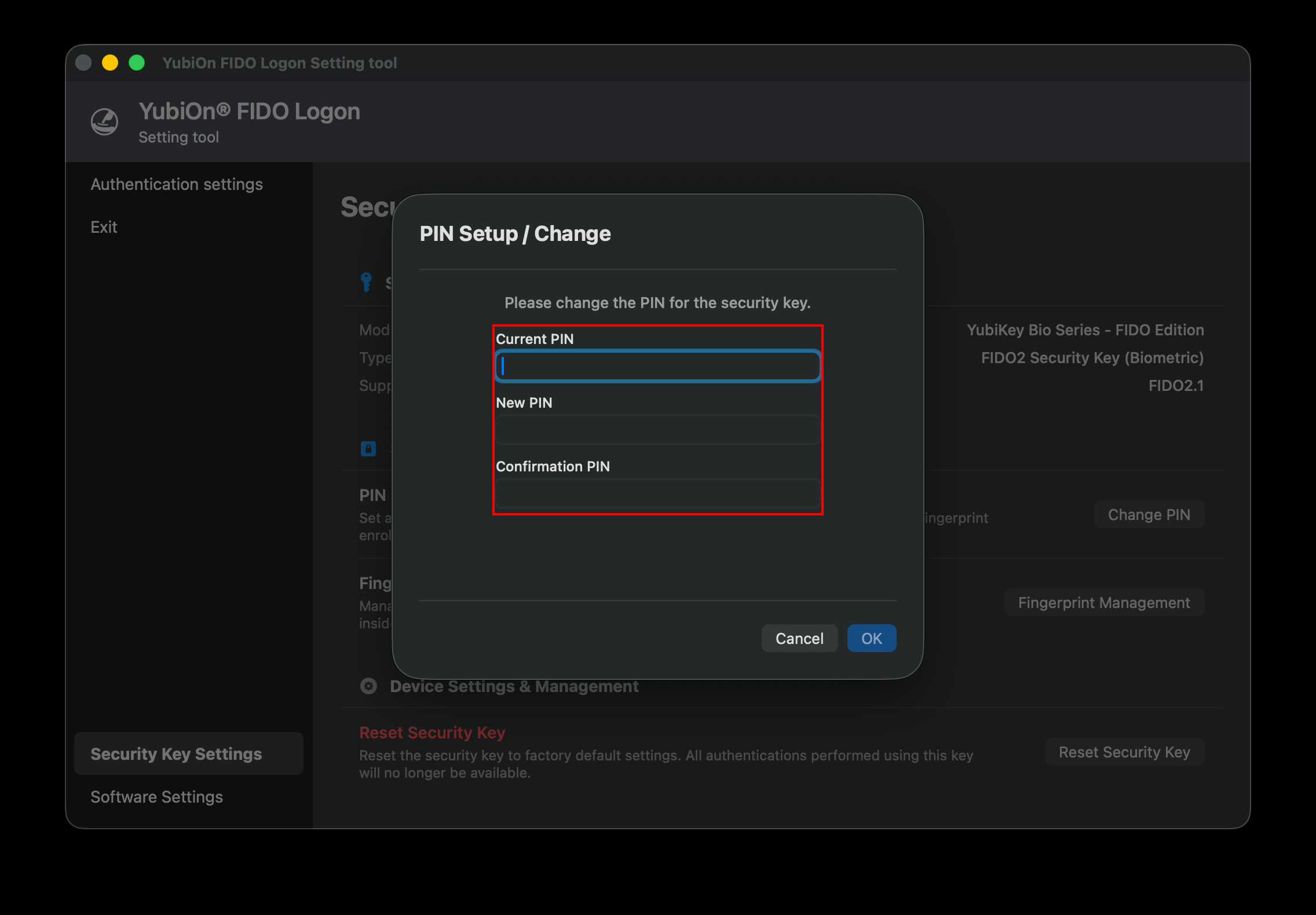
- Click the “OK” button.
- When “PIN change completed.” is displayed, click “OK” to finish.
Notes on Changing PIN
- You cannot set the “New PIN” to the same value as the “Current PIN”.
- Entering an incorrect current PIN multiple consecutive times may cause the security key to become locked (PIN blocked / authenticator blocked), requiring you to reinsert the key or reset the security key.