Screen Display When Unlocking the Screen
This section describes the screen display and notes when unlocking the screen from a locked state on macOS.
Screen Display When Unlocking the Screen
In the Windows version of YubiOn FIDO Logon, there is no significant difference in the interface between the logon screen and the screen unlock screen. However, in the macOS version, due to OS specifications and security restrictions, the appearance when unlocking the screen differs greatly from the logon screen.
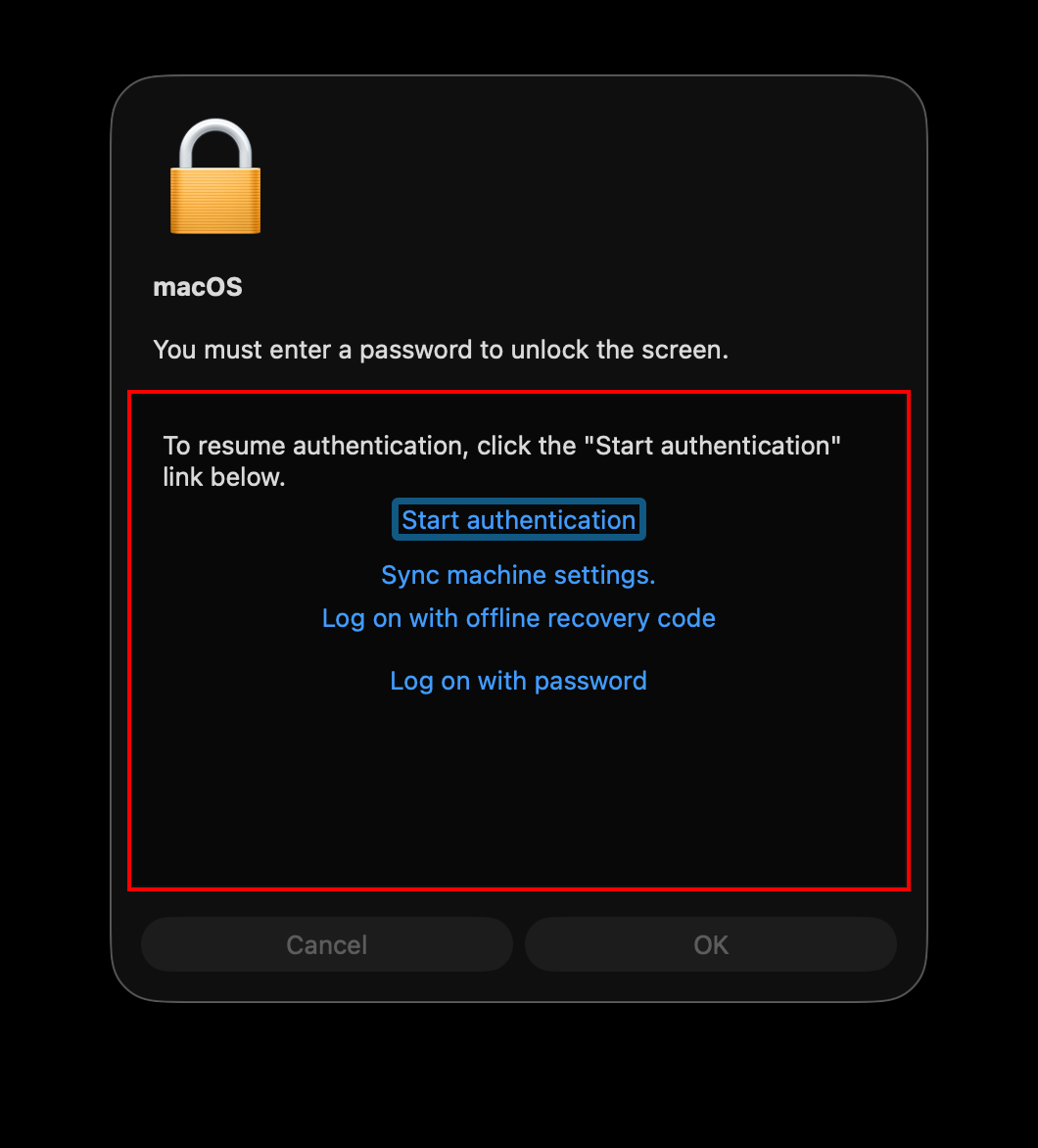
When unlocking the screen on macOS, the YubiOn FIDO Logon operation UI is displayed inside the standard macOS security window (unlock dialog).
About Provided Features
Although the appearance of the screen is different from the logon screen, the features and operations provided do not change at all. All functions, such as authentication using a security key, syncing machine settings, and logging on with an offline recovery code, can be used as usual.
Screen Structure and Operations
The screen unlock window consists of the outer frame provided by macOS and the YubiOn FIDO Logon operation area (the red framed area in the figure above) displayed in the center.
1. Outer Frame (macOS Standard Security Window)
- The lock icon at the top of the window, the “macOS” label, the message “You must enter a password to unlock the screen.”, and the “Cancel” and “OK” buttons at the bottom are standard UI components provided by macOS.
- Due to OS-level restrictions, these messages and button texts cannot be modified or hidden by third-party software.
- Although it states “You must enter a password to unlock the screen.”, this is a fixed message from macOS. You can authenticate using a security key in addition to password authentication.
2. Center Area (YubiOn FIDO Logon Operation Area: Red Frame)
- Actual authentication processing and various operations function within the YubiOn FIDO Logon area enclosed by the red frame in the center.
- Users only need to focus on the display inside the red frame in the center, regardless of the outer frame messages.
About the "OK" Button and Password Message
Because the “OK” button at the bottom and the “You must enter a password to unlock the screen.” message at the top are managed by macOS, you do not need to operate them while YubiOn FIDO Logon is waiting for or performing authentication. Please follow the instructions inside the red frame in the center.