Register the security key
There are two ways to register a security key: from the configuration tool or from the logon screen.
If the account has been deleted
If the macOS account you are logged on with has been deleted on the YubiOn FIDO Logon web management site, you cannot perform this registration operation.
Before registering a security key
FIDO security keys must have a PIN set before they can be used. (Including those with fingerprint support)
With either of the registration methods below, or when logging on (see Logon with security key), you are guided through registering or changing the PIN whenever it is required. Biometric information (fingerprints, etc.) must be set up separately.
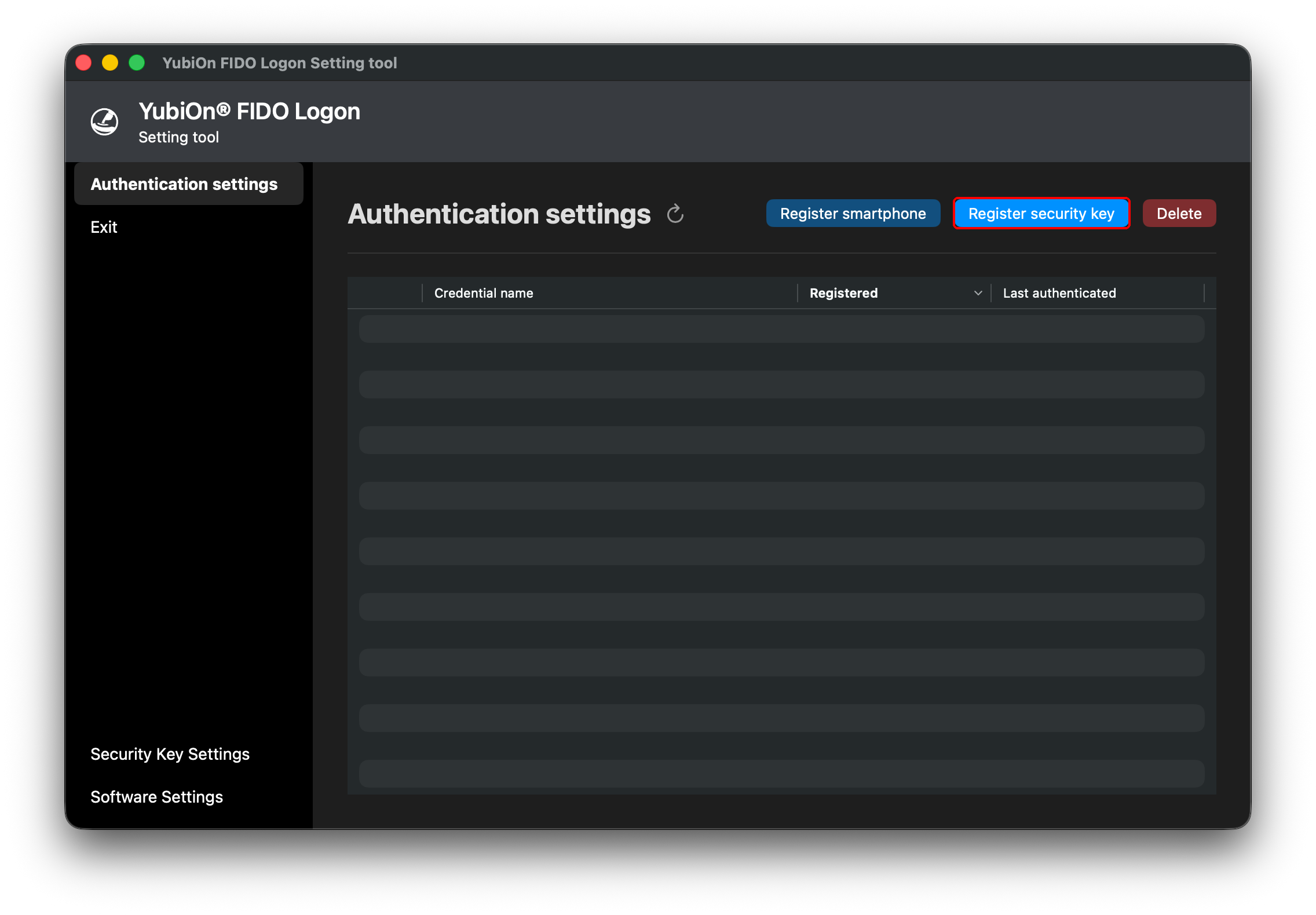
- Start the configuration tool and open the authenticator list screen.
- Click “Register security key”.
- A registration window is displayed. Follow the instructions to connect the FIDO security key to a USB port on your Mac.
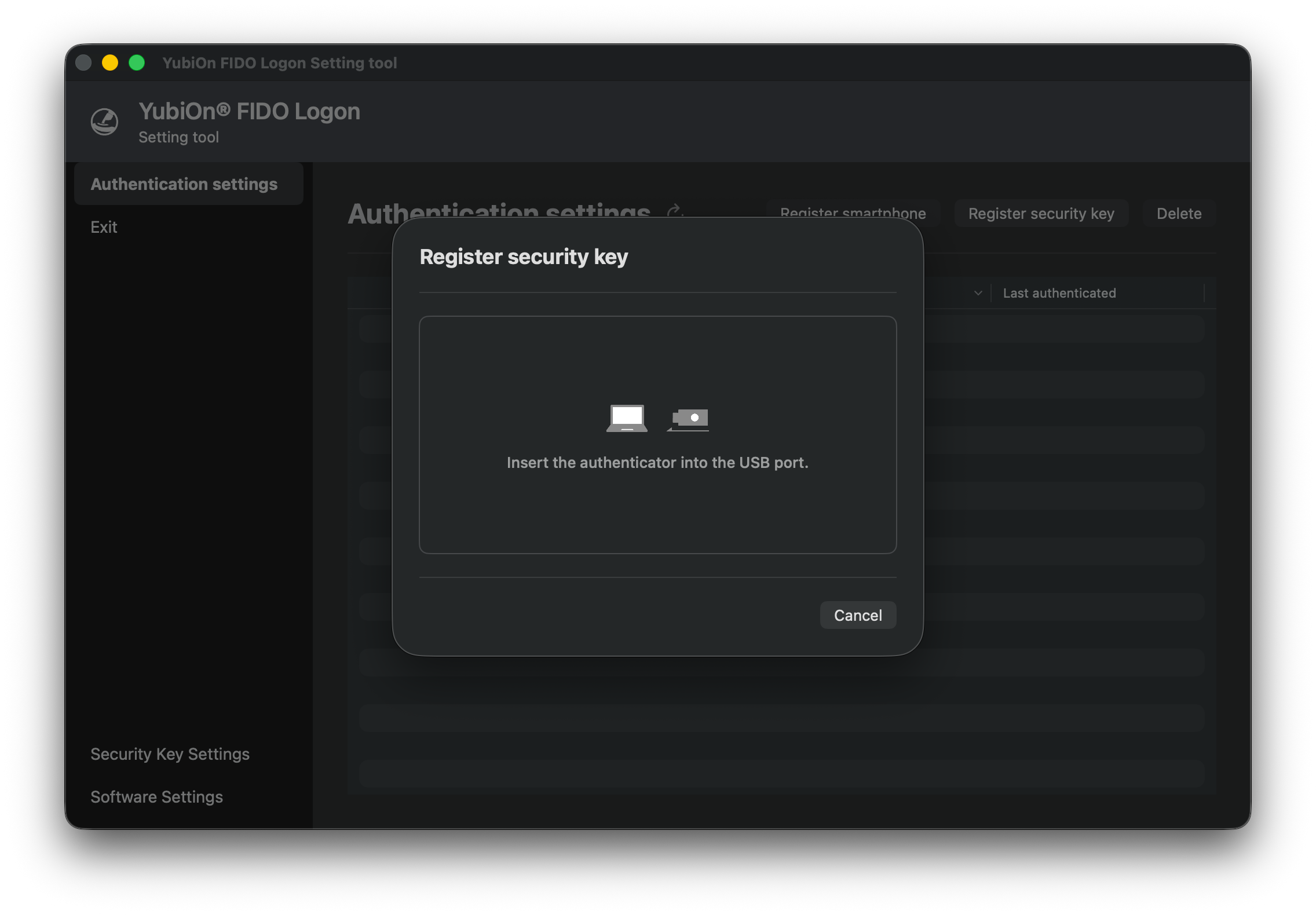
If multiple security keys are connected
A screen to select which key to register is displayed.
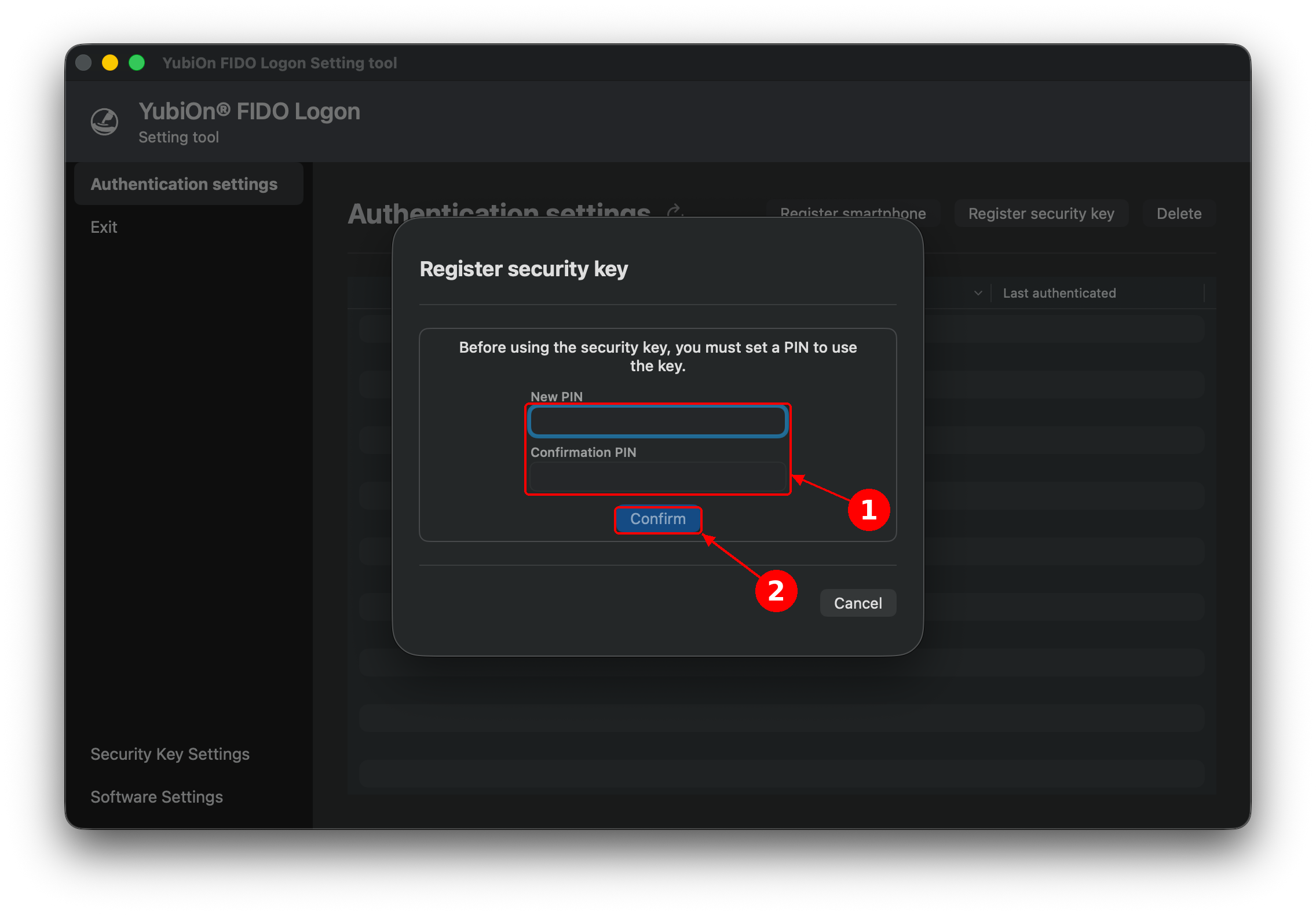
- If the security key does not have a PIN set, you will be asked to set a new PIN within this same screen. Enter a new PIN and a confirmation PIN, then click “Confirm”.
If the key already has a PIN set, you will instead be asked to enter the existing PIN. Enter the PIN and click “Confirm”.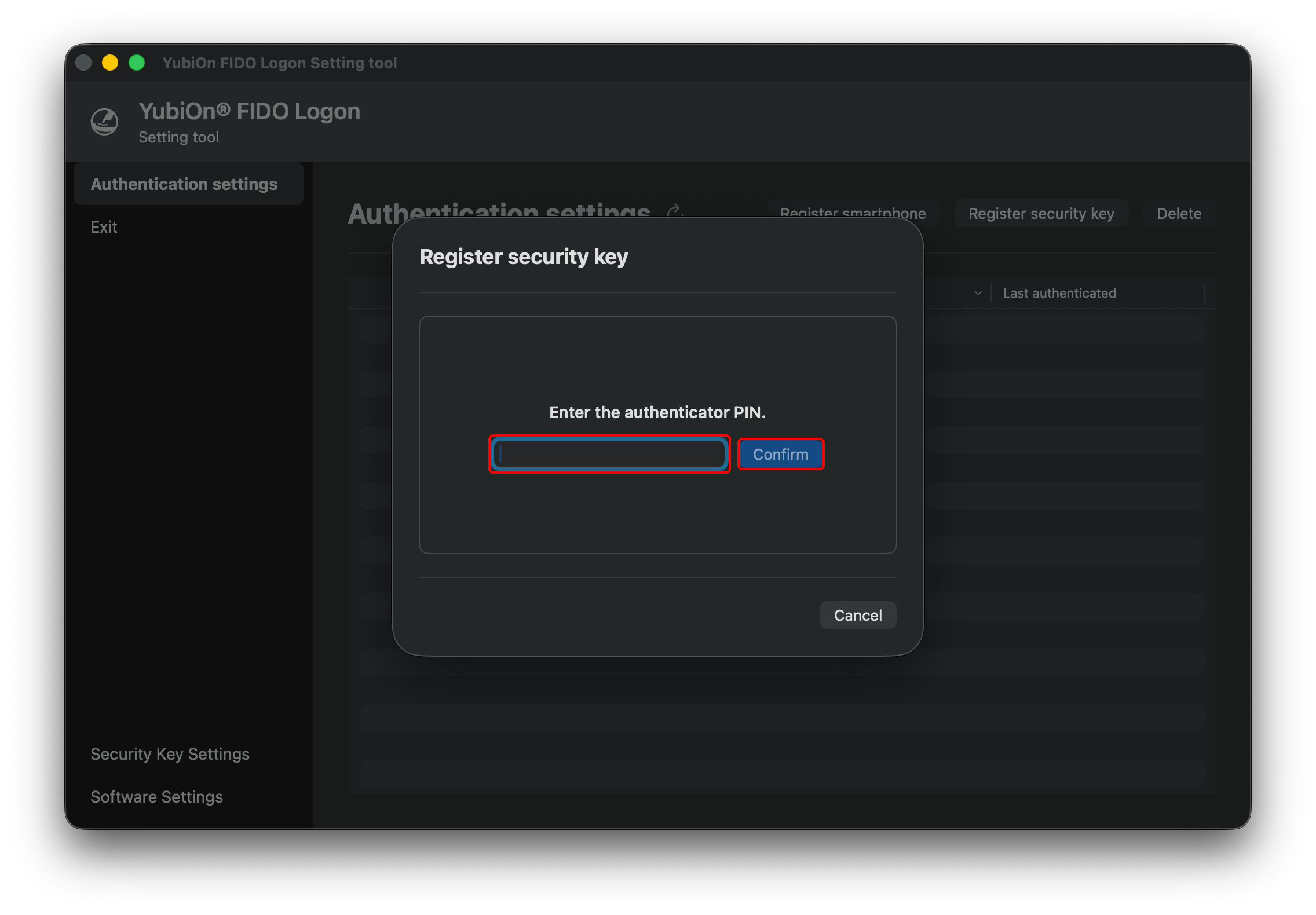
For biometric-capable security keys
If the security key supports biometric authentication and both a PIN and biometric information are registered on it, you will be prompted for biometric authentication instead of entering the PIN.
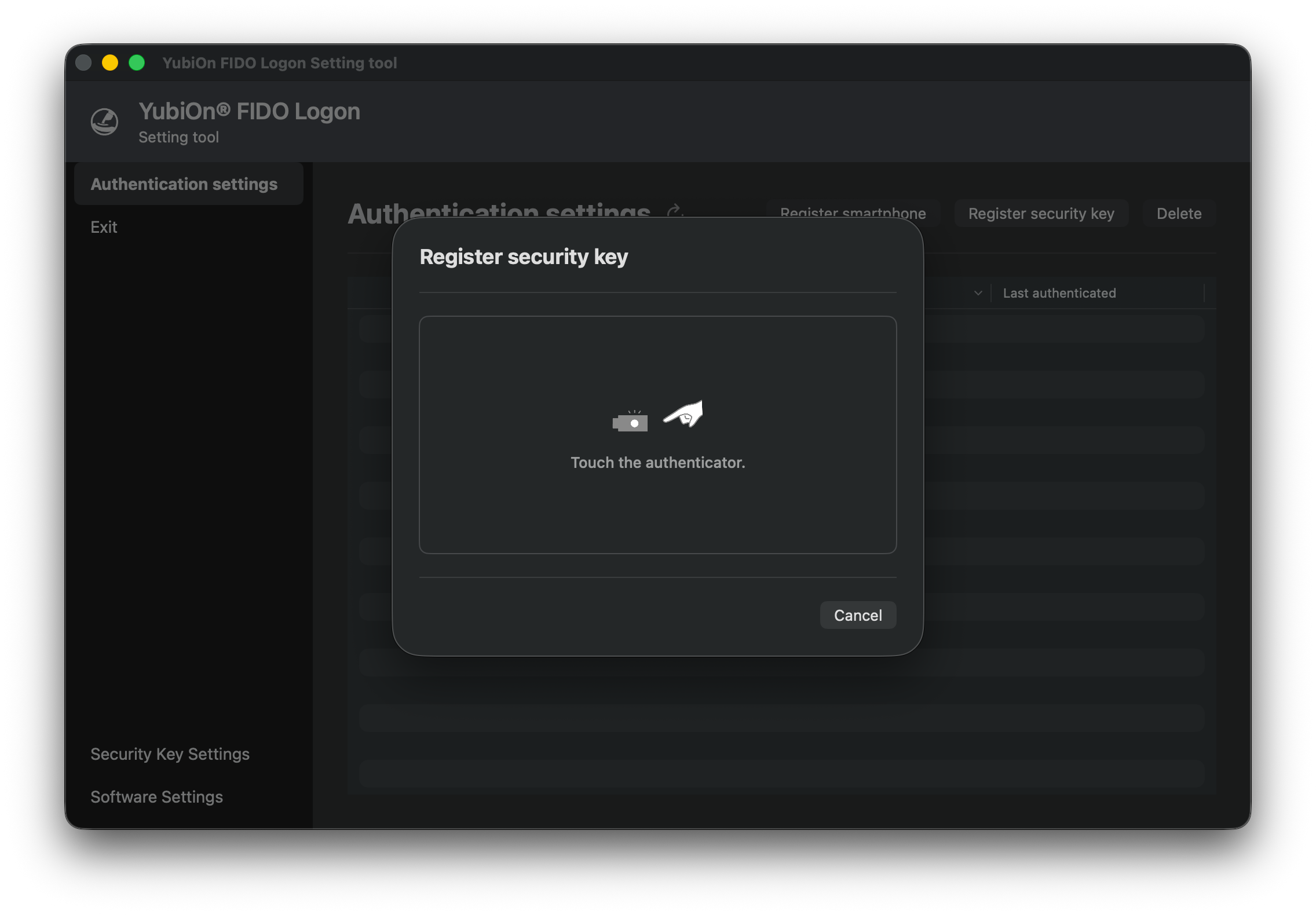
- When prompted to touch the security key, touch it.
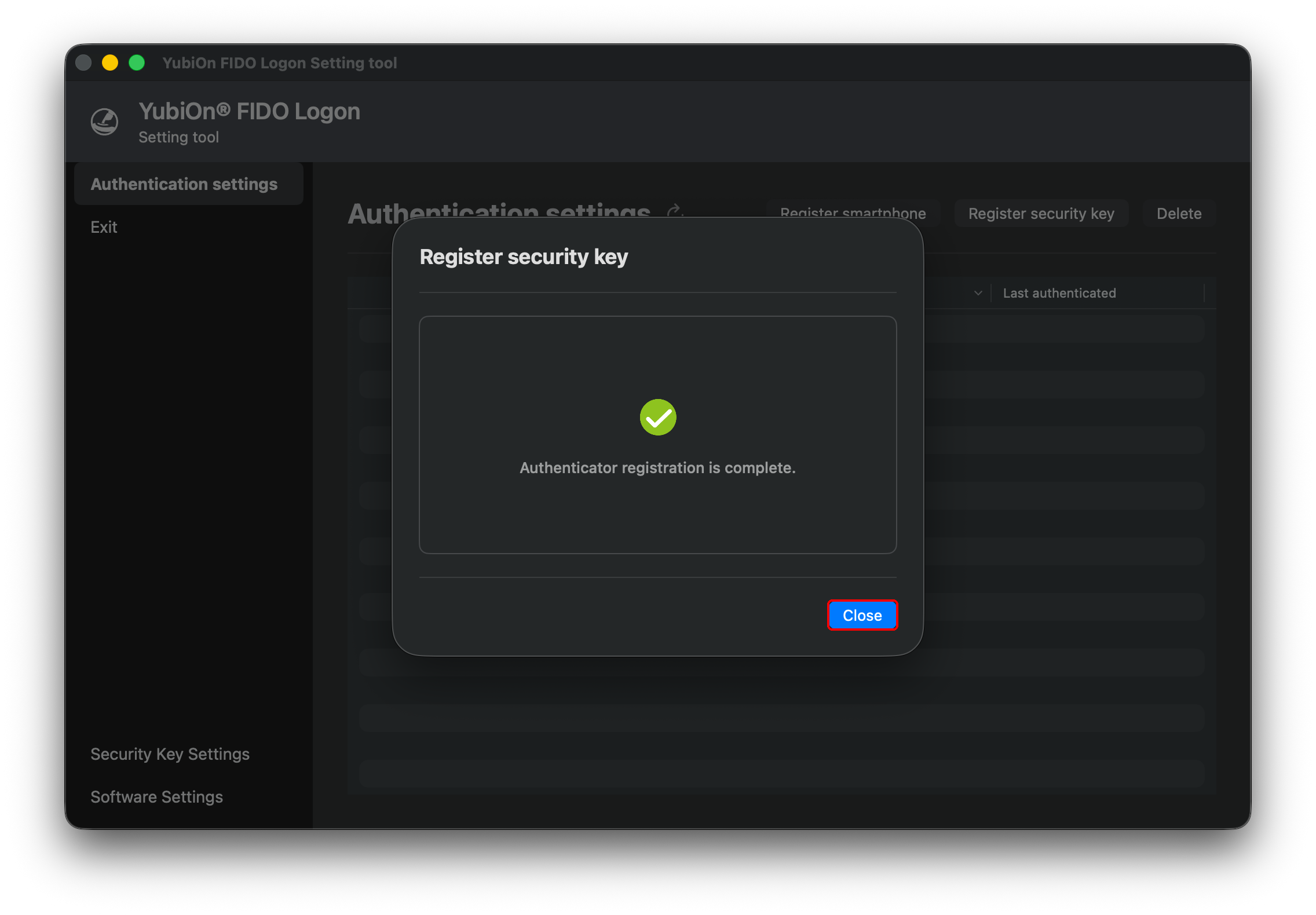
- Click “Close” when the registration complete message is displayed.
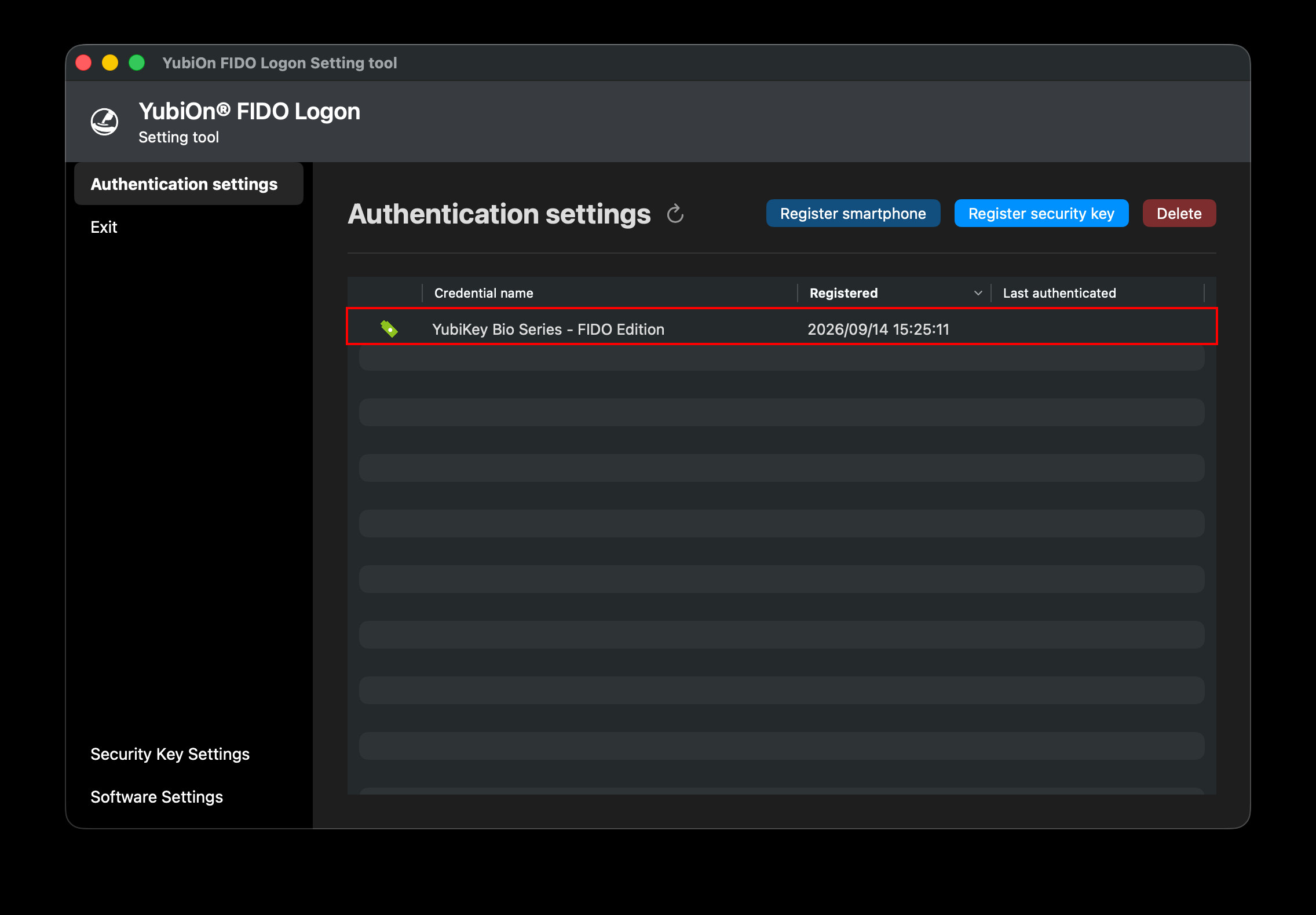
- Confirm that the registered authenticator is displayed in the list screen.
- Exit the configuration tool.
Prerequisite
To register from the logon screen, the following conditions must be met.
- No authenticator is assigned to the account to log on to.
- The “Logon to authenticator-less account” policy is set to “Logon with password only the first time and enforce authenticator registration” (administrator operation).
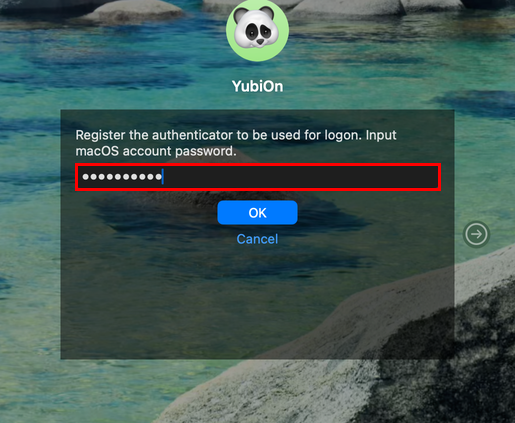
- Select the account to log on to on the logon screen or the lock screen. Because no authenticator is registered, you are informed that an authenticator will be registered and are asked for the password of the macOS account. Enter the password.
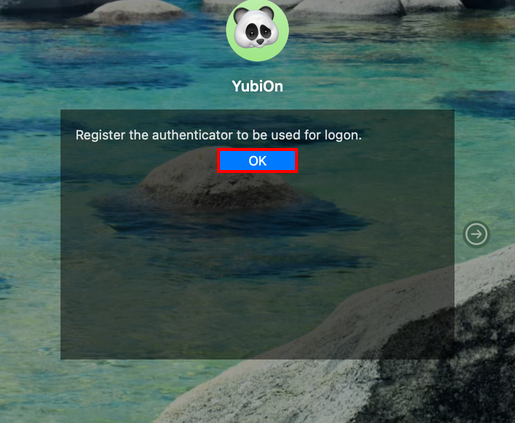
- Once the password is verified, a message announcing the start of authenticator registration is displayed. Click “OK”.
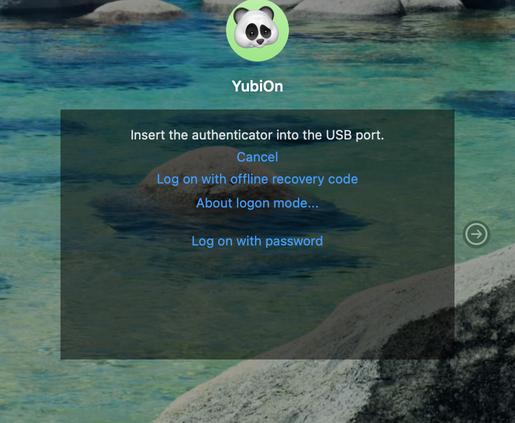
- Connect the FIDO security key to a USB port on your Mac.
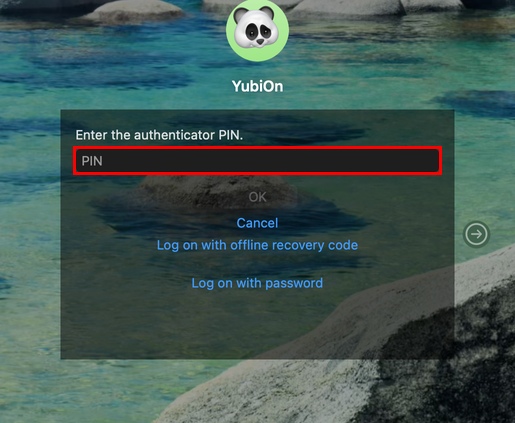
- If the security key does not have a PIN set, you will be asked to set a new PIN within this screen. Enter a new PIN and a confirmation PIN. If the key already has a PIN set, you will instead be asked to enter the existing PIN.
For biometric-capable security keys
If the security key supports biometric authentication and both a PIN and biometric information are registered on it, you will be prompted for biometric authentication instead of entering the PIN.
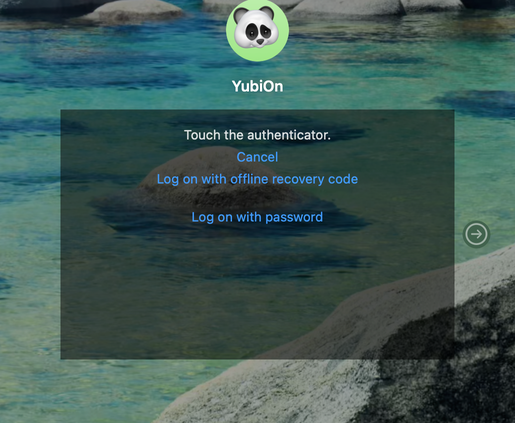
- When prompted to touch the security key, touch it.
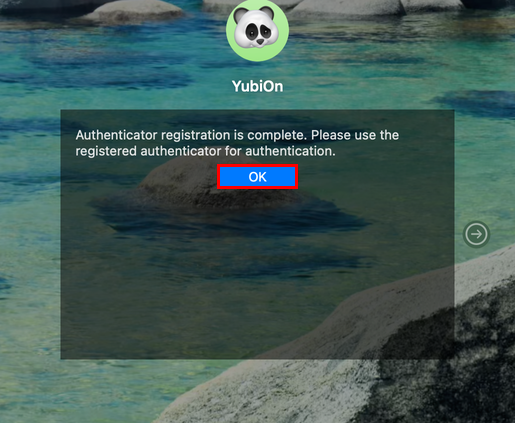
- When the registration is complete, a message is displayed. Click “OK” to proceed to authentication.
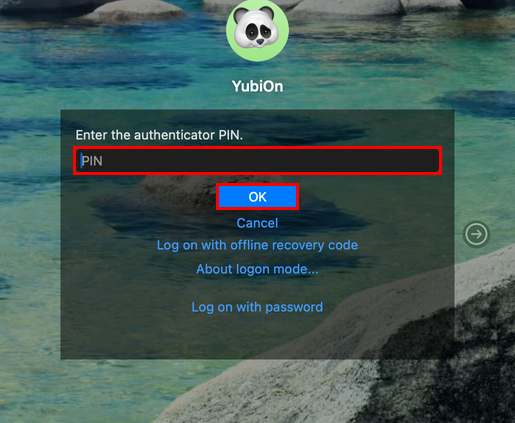
- Enter the PIN of the authenticator and click “OK”.
- When prompted to touch the security key, touch it.
- When the authentication succeeds, the logon completes and the desktop is displayed.