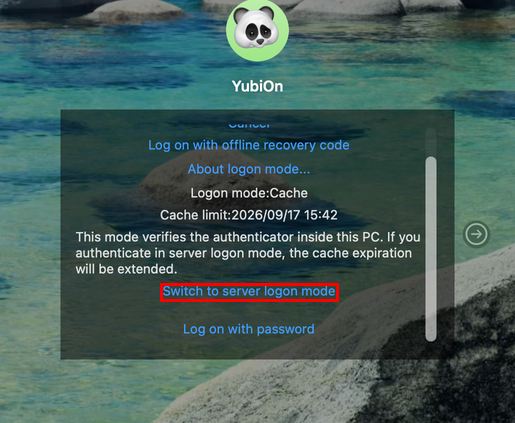
Logon mode
If the administrator has enabled “cache logon”, you can switch where you are authenticated when logging on (the logon mode) yourself.
Logon mode
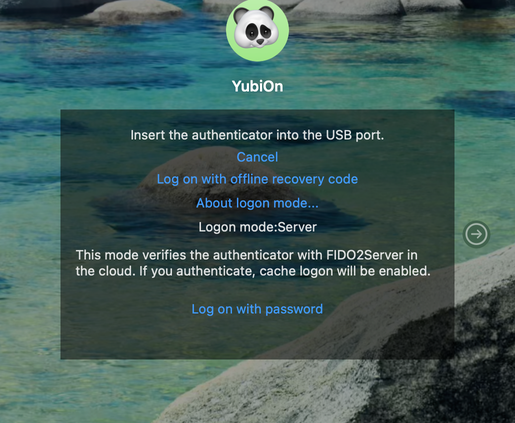
- Server:
Authentication is performed with FIDO2Server in the cloud.
An internet connection is required in order to connect to the cloud.
This is the default logon mode of FIDO Logon.
- Cache:
Authentication is performed using the cache inside your Mac.
Because there is no need to access the server, FIDO authentication is possible even offline within the cache expiration period (number of days) set by the administrator.
To use cache logon mode, you must log on once in server logon mode (an online logon).
When authentication on the server succeeds, a cache is created inside your Mac, and from the next logon on, cache logon mode is selected until the cache expires.
The cache expiration is counted from the last logon authenticated in server logon mode, so authenticating in that mode again within the period extends the expiration.
If the cache has expired, a logon in server logon mode is required as well.
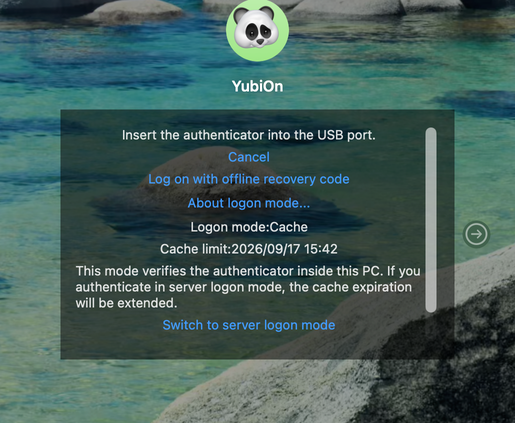
How to check the cache expiration
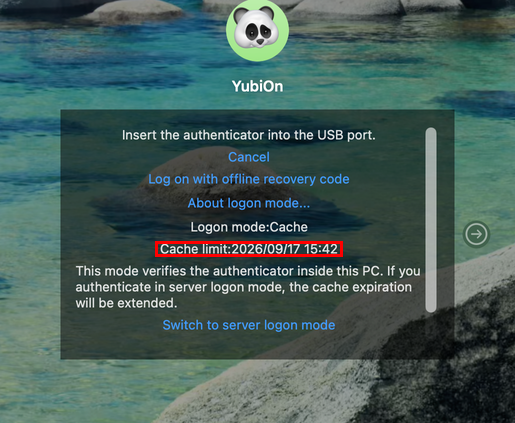
The cache expiration can be checked in cache logon mode.
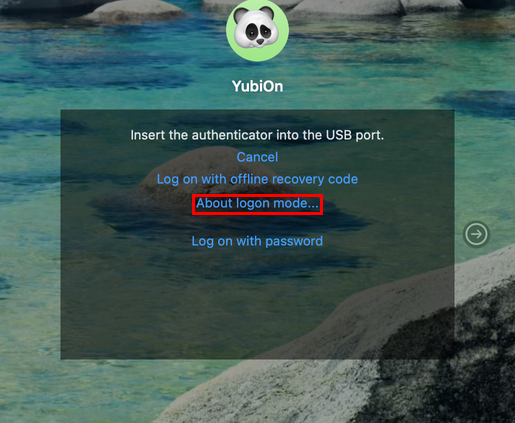
- At logon, click the “Start authentication” link.
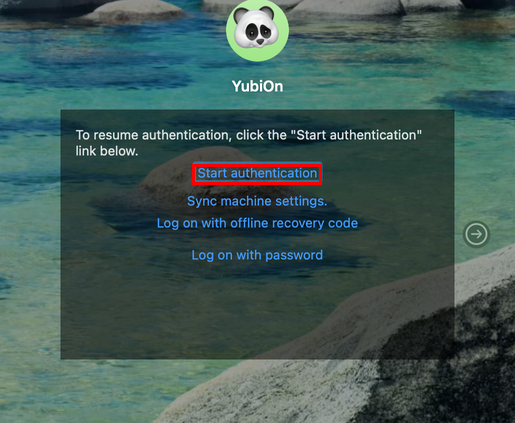
- Click the “About logon mode…” link.
- In cache logon mode, the cache expiration is displayed.
How to switch the logon mode
On the logon screen, you can switch from cache logon mode to server logon mode.
- At logon, click the “Start authentication” link.
- Click the “About logon mode…” link.
- In cache logon mode, click the “Switch to server logon mode” link.